

SAP CAL system setup – Costing and Settings
Read the getting started Guide here which has most of the information you need when trying to setup
It is highly recommend to use this for ISV firms trying to integrate their solution with SAP
Typical use cases are trial, sandboxing, proof-of-concept, or scoping exercises.
Via SAP Cloud Appliance Library, the appliance can be rapidly brought up as your personal appliance with administrative rights in dedicated hyper-scalers such as Amazon, MS Azure or Google Cloud Platform (setup time ~2 hours). SAP also offers to use the appliance on your own hardware e.g. in your data center (setup time usually ~2-3 days), please see SAP Note 2041140 if you are interested in this deployment option.
Note these systems work in an isolated manner so they would not be updated by SAP with a new release if it comes up.
Costing During 30 days
In the first 30 days, the SAP license fees (Cloud Appliance Library & S/4HANA) are waived. During this period, you only need to bear the hosting fees of your cloud provider. The 30-day period starts when you accept the form for the trial agreement in the Cloud Appliance Library console (after clicking on “Create Appliance”). During the instantiation, the S/4HANA system will generate a temporary license key that is enough for exploration purposes.
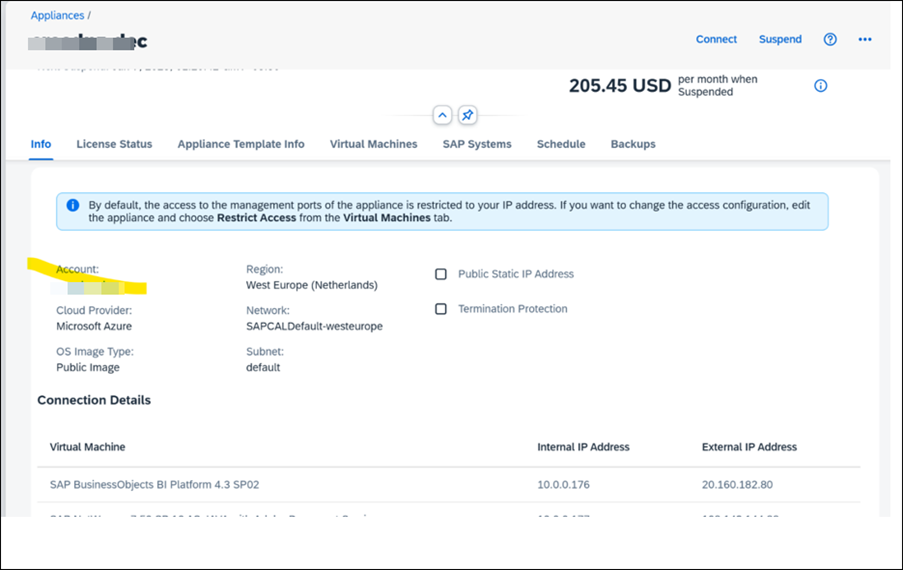
Even if you do not use the system and it is in suspended state it would cost approx. 210 USD and for a per hr it would be approx. 3000 USD or so per month for a 24*7 access.

After 30 days
If you want to use an appliance beyond the 30-day trial period (i.e. unlock the appliance template in SAP CAL), you need to obtain two SAP licenses: 1. 2. The SAP Cloud Appliance Library (SAP CAL) subscription The SAP product licenses for the product(s) that are bundled within your appliance (i.e. SAP S/4HANA and HANA DB licenses in the case of the SAP S/4HANA Fully-Activated Appliance) The validity of these licenses will be automatically checked after the first 30 days. In case of a missing license component an error message will be displayed in the SAP Cloud Appliance Library console and the respective appliance will stay in status “Suspended”.
Clients in the system
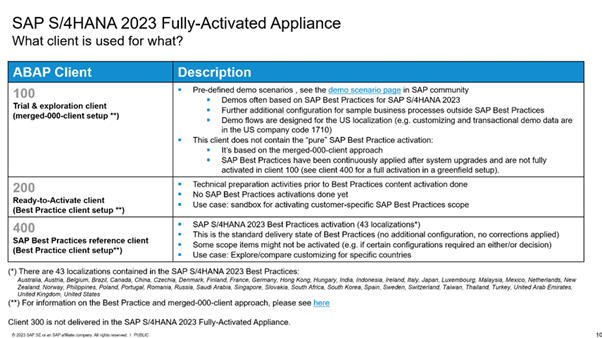
It comes up with pre configured clients as well 100, 200 and 400 as seen below
Tips on Using CAL system
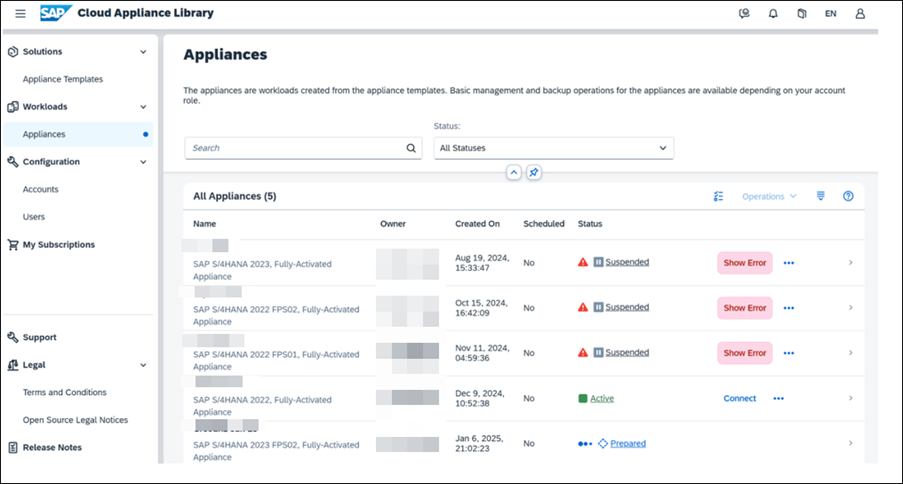
- How to keep running with the SAP Cal even after Trial period expires As you see here the system expires every 1 month but we have been able to spin up a new template each time . Ensure that you create a template which has not been used before.
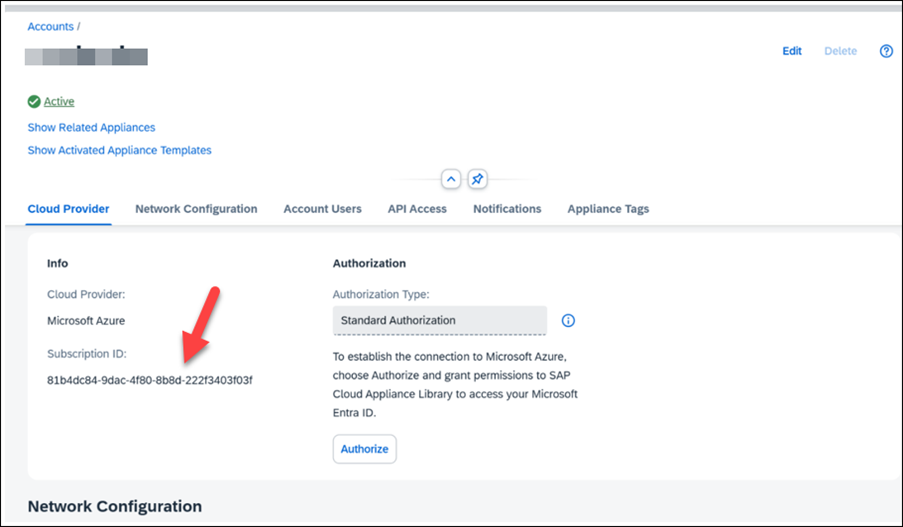
2. Find your subscription ID in CAL system
See the below active Status and the subscription ID.
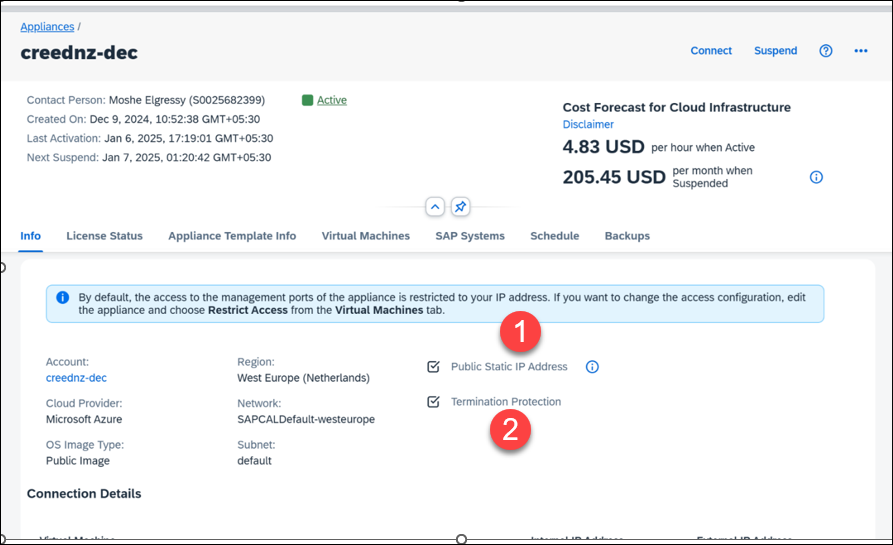
3. Static IP and Termination protection: You can also select setting for static Public IP and add Termination Protection so no one can accidently terminate the CAL instance.
Reference other useful links
SAP Access
C3dEfG_456#ABCeefgh
Appliances – SAP Cloud Appliance Library> Login here to check the status
SAP S/4HANA Fully-Activated Appliance: Create your… – SAP Community
How to Keep an Expiring Trial Appliance in SAP Clo… – SAP Community