
Business Central 1099 Forms Setup and Update Back Dated Entries
The blog provides you an insight into how you could set up 1099 Form Boxes and make Vendors as 1099 liable and use the report which is inbuilt feature of Business Central
Introduction- Business Central 1099 Forms Setup
Every business has to process 1099 statements annually. To make the processing simpler for your accounts team, you should opt for Business Central 1099 Forms Setup. It is extremely user-friendly and it continues to update your vendor amounts all round the year.
1099 Forms Setup In D365 Business Central
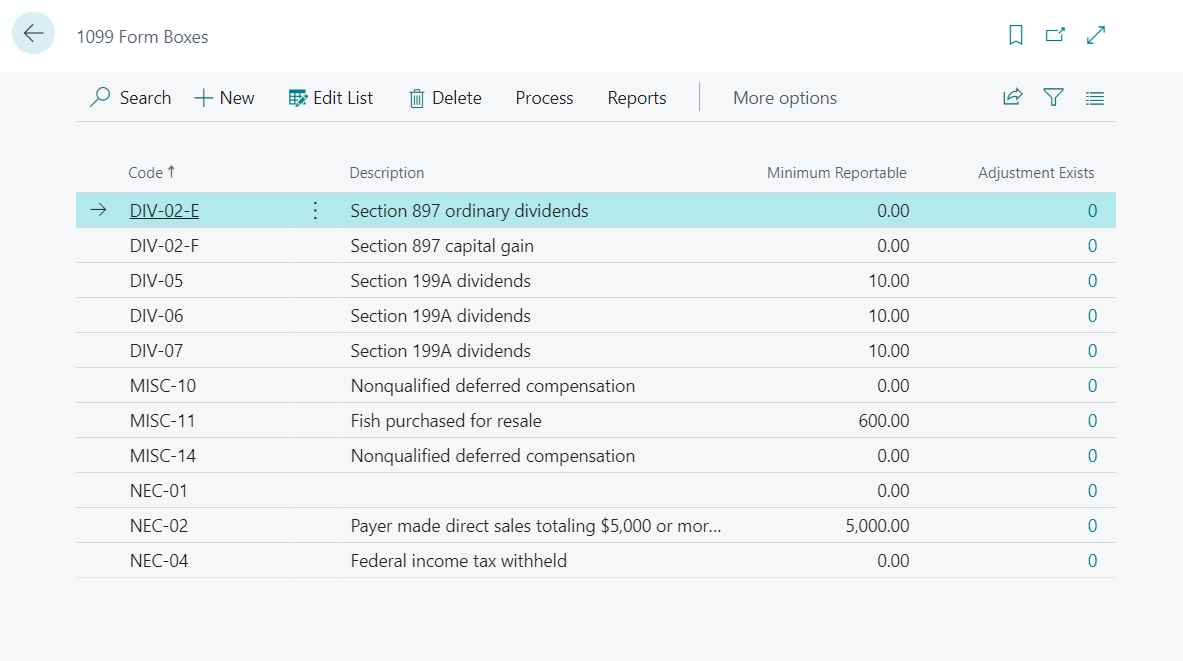
Business Central 1099 Forms Setup Boxes are automatically present in the system and they are updated through Job Queue Entries. (NOTE: The 1099 reports will only be generated for all vendors above the minimum reportable amount for the assigned 1099 code, and the payments must be applied to the purchase invoices within the same calendar year.) To review the minimum amounts of each 1099 IRS Code:
- Open the global search and look for “1099 form boxes”. In the 1099 Form Boxes window, you will find the 1099 codes and their minimum reportable amounts.
- Click on the “Edit List” option to modify any of the amounts and these changes will be saved once you close the window.
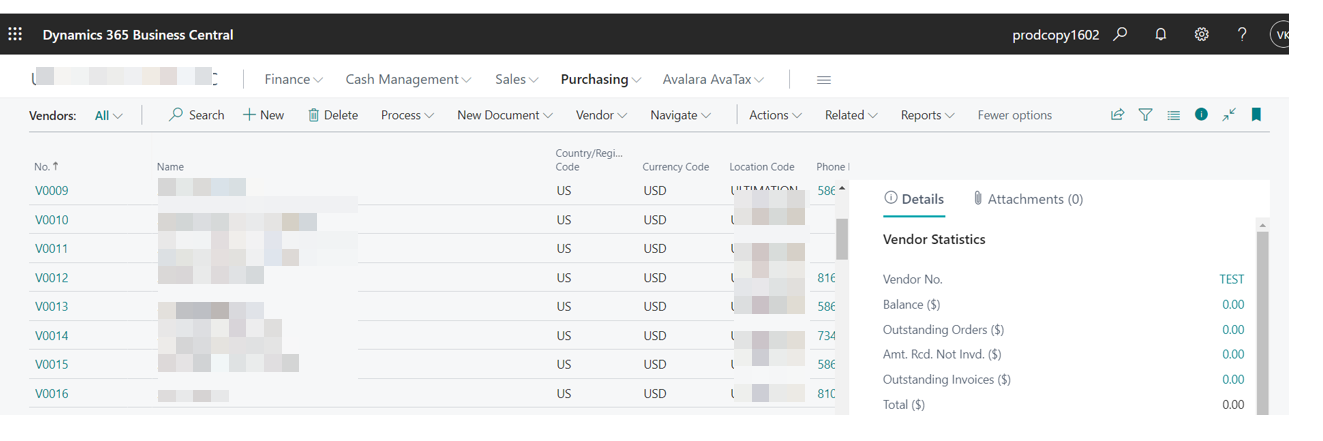
- To set up a 1099 vendor: Open the vendors’ list and select the vendor that you will be setting up as a 1099 vendor.
- Within the Payments Fast Tab, select the IRS 1099 Code for the vendor and enter their Federal ID number.
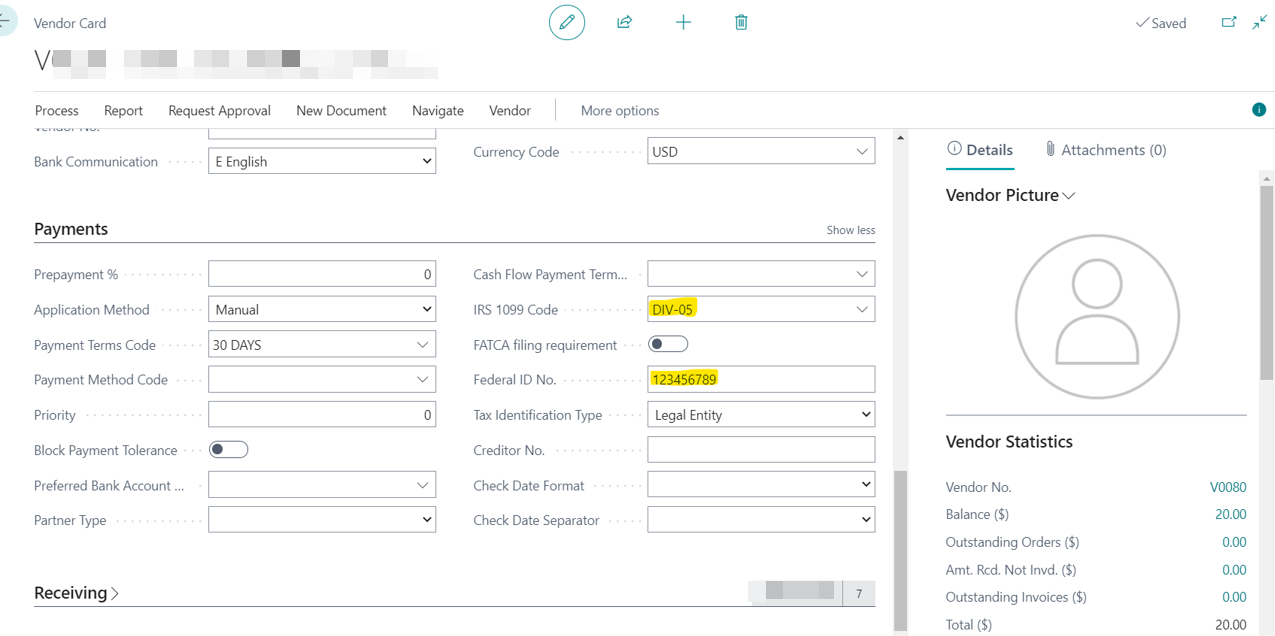
- Click on the back arrow in the top left of the vendor card to save the changes.
Transaction Processing for Business Central 1099 Forms Setup
- You can add the IRS Code automatically to the transaction under the Shipping and Payment Fast Tab. For this transaction, the code can be overridden to a different 1099 code or removed all together.

- Within the lines section, the IRS 1099 Liable Field will automatically populate, if an IRS 1099 Code is assigned to a document. If the line item is not 1099 liable, you can unmark this field.
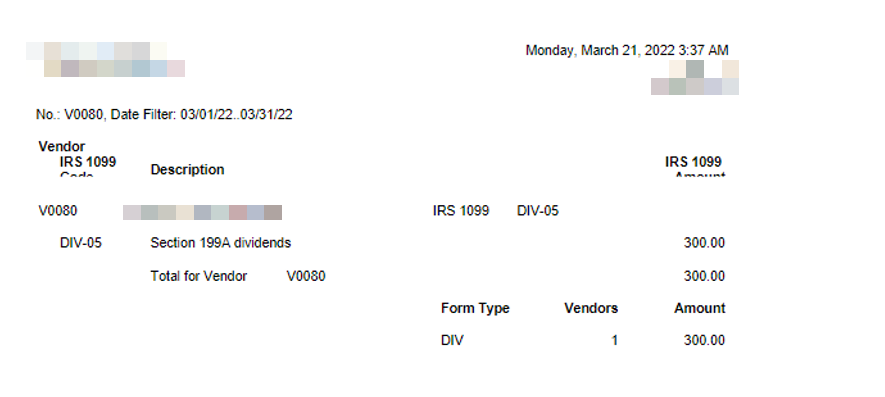
1099 Corrections
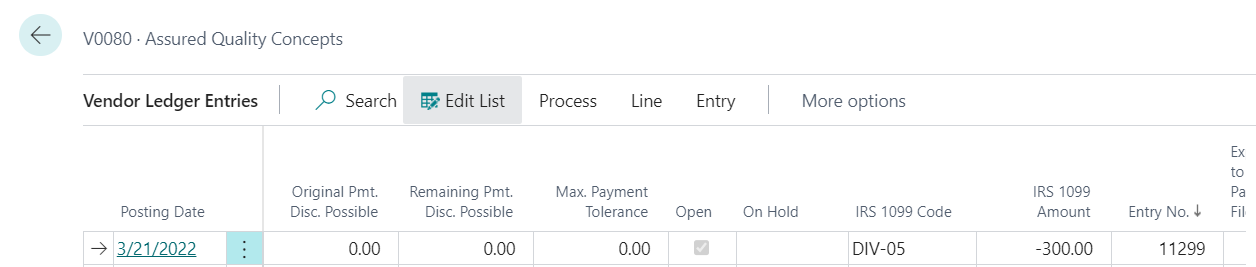
Corrections to vendor 1099 amounts can be done within the Vendor Ledger Entries Window. In this window, you can review the list of invoices and assign the IRS 1099 Code and amount for the total 1099 amounts to be reflected appropriately.
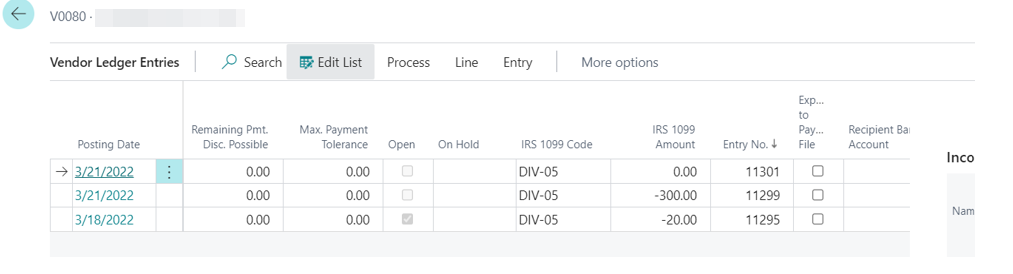
Once you are done correcting the transactions, you can run the “Vendor 1099 Information” report to verify the totals.

Conclusion
Business Central 1099 Forms Setup is extremely easy. 1099 forms is a great feature offered by Microsoft Dynamics 365 Finance as once you setup the a vendor as 1099 vendor, the amounts start to track in the software throughout the year. You can follow the steps given above to setup your forms quickly. Reference:
Share us
Get A Quote
Proud Blogs that
make us stand out
Recent Home
Terms & Conditions
Marketing and Feedback Terms and Conditions
General Terms and Conditions
Recent Home
S/4 Hana
SAP Fieldglass Resume Ranking setup
Ensure seamless SAP Integration | Secure Access | Auth0 with third-party APIs. Secure authentication &…
Recent Home
Awards
Peritos Wins Globalisation Excellence Award | MSME Star Stories 2024
Peritos Solutions is proud to be a winner in the “Globalisation Excellence” category at MSME…
Recent Home
Awards
Peritos Wins at NABH Quality Connect Fiesta 2024
Peritos proudly receives the NABH Quality Connect Healthcare Quality Pitch Award at the 2024 Competitions…
Recent Home
Awards
Peritos: New Zealand ICT Award Finalist for Technical Award 2025
Peritos Solutions has been named a finalist for the 2025 New Zealand ICT Technical Award,…
Thinking about a project? Get in touch with us.
Connect with Us Today through the Details Below or Fill
Out the Form for a Prompt Response
Book Free Consultation
Guaranteed response within 8 business hours.
Trusted by Startups and Fortune 500 companies
We can handle projects of all complexities.
Startups to Fortune 500, we have worked with all.
Top 1% industry talent to ensure your digital success.