




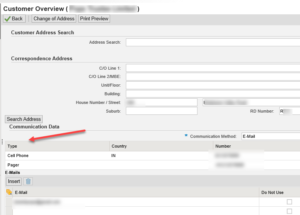
For the customer overview screen, when the user clicks on edit to update the address information
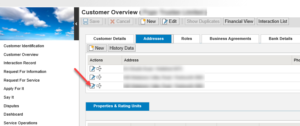
Right-click on the specific field and then press F2, and then you will be able to see the technical details.
Make a note of the UI component and View as below
UI Component is BP_ADDR, and View is BP_ADDR/AccountCommNumbersEL
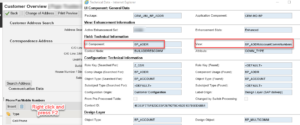
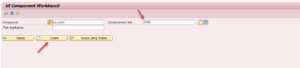
Use transaction obsp_wd_cmpwb to be able to open the component in the backend CRM system.
Then enter the component found above as BP_ADDR. You can use an existing enhancement or create a new one. In my case, I am using an existing enhancement as ZCRM.
 Find the UI component and View associated with it
It shows the different view components as seen below
In order for us to change the section for communication then, we need to focus on the controller implementation class Implementation Class ZL_BP_ADDR_ACCOUNTCOMMNUM_IMPL
And View layout AccountCommNumbersEL.htm
Find the UI component and View associated with it
It shows the different view components as seen below
In order for us to change the section for communication then, we need to focus on the controller implementation class Implementation Class ZL_BP_ADDR_ACCOUNTCOMMNUM_IMPL
And View layout AccountCommNumbersEL.htm
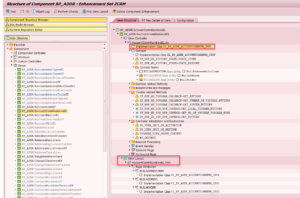
Find the UI component and View associated with it
It shows the different view components as seen below
In order for us to change the section for communication then, we need to focus on the controller implementation class Implementation Class ZL_BP_ADDR_ACCOUNTCOMMNUM_IMPL
And View layout AccountCommNumbersEL.htm
If you have never used the UI object above, then the methods would need to be redefined in my class. I already used the class before, so there is no need to redefine hence using the class ZL_BP_ADDR_ACCOUNTCOMMNUM_IMPL.
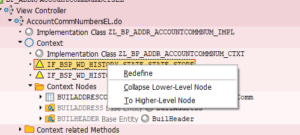 This is one of the important classes which has a method DO_PREPARE_OUTPUT where you can control to make the view editable or display only
Class time in a bol entity for implementation is of the type CL_BSP_WD_VIEW_CONTROLLER
In this class, you get attributes by default which you can use to control the context behavior
For this case, we would be using VIEW_GROUP_CONTEXT
This is one of the important classes which has a method DO_PREPARE_OUTPUT where you can control to make the view editable or display only
Class time in a bol entity for implementation is of the type CL_BSP_WD_VIEW_CONTROLLER
In this class, you get attributes by default which you can use to control the context behavior
For this case, we would be using VIEW_GROUP_CONTEXT
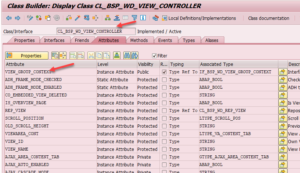 This further reference an associated interface IF_BSP_WD_VIEW_GROUP_CONTEXT
This is one of the important classes which has a method DO_PREPARE_OUTPUT where you can control to make the view editable or display only
Class time in a bol entity for implementation is of the type CL_BSP_WD_VIEW_CONTROLLER
In this class, you get attributes by default which you can use to control the context behavior
For this case, we would be using VIEW_GROUP_CONTEXT
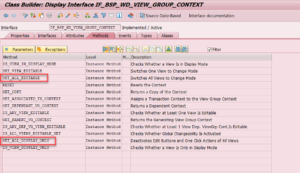
This further reference an associated interface IF_BSP_WD_VIEW_GROUP_CONTEXT
The below code was added in method DO_PREPARE_OUTPUT
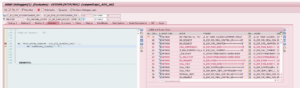
me->view_group_context->set_all_display_only( )..
Breakpoints can be set, and after changes, you will notice that you are still able to edit the BP header section
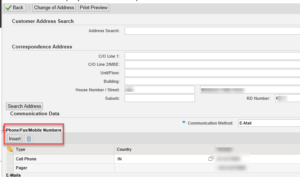 Let’s add an additional line of code that says
me->zaddress_display = ‘ ‘.
Let’s add an additional line of code that says
me->zaddress_display = ‘ ‘.
 Now when the program runs, it is able to show the field as display only.
 The additional setting is to create an attribute in the class
 This attribute value is passed on the BSP page below
 Then the code should say:
display mode = “<%= controller->zaddress_display %>”
Then the code should say:
display mode = “<%= controller->zaddress_display %>”
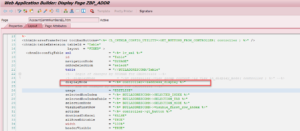 To make all fields editable below then, you should use
me->view_group_context->set_all_editable( ).
me->zaddress_display = ‘ ‘.
After that, the HTML page, the value of Zddress, would now be passed as Blank, making the field editable.
To read more: https://blogs.sap.com/2019/10/07/crm-bol-programming-basics-of-how-to-control-display-property/
To make all fields editable below then, you should use
me->view_group_context->set_all_editable( ).
me->zaddress_display = ‘ ‘.
After that, the HTML page, the value of Zddress, would now be passed as Blank, making the field editable.
To read more: https://blogs.sap.com/2019/10/07/crm-bol-programming-basics-of-how-to-control-display-property/
Let’s add an additional line of code that says
me->zaddress_display = ‘ ‘.
Now when the program runs, it is able to show the field as display only.
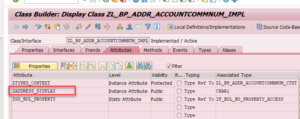
The additional setting is to create an attribute in the class
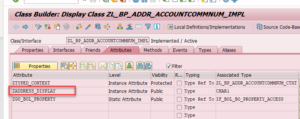
This attribute value is passed on the BSP page below
Then the code should say:
display mode = “<%= controller->zaddress_display %>”
To make all fields editable below then, you should use
me->view_group_context->set_all_editable( ).
me->zaddress_display = ‘ ‘.
After that, the HTML page, the value of Zddress, would now be passed as Blank, making the field editable.
To read more: https://blogs.sap.com/2019/10/07/crm-bol-programming-basics-of-how-to-control-display-property/  Recent Home
 Recent Home
 Recent Home
 Recent Home
 Recent Home



