Teams add users as Guests or Talk to external users
Users will come to know about Teams add users as Guests or Talk to external users and the benefits of adding external users.
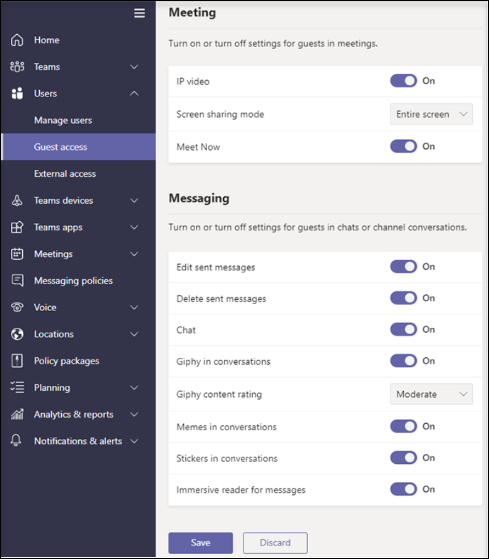
Adding Users as Guests
Benefits of Adding Guests
- Streamlined Collaboration: Inviting guests to Teams channels and conversations promotes real-time collaboration and facilitates quick decision-making. External users can actively contribute to discussions, provide valuable input, and share documents, fostering a cohesive and inclusive collaboration experience.
- Enhanced Productivity: With guest access, organizations can minimize the need for multiple communication platforms. Instead of juggling between different tools and applications, all team members, including external users, can work together within the familiar Microsoft Teams interface. This consolidation leads to increased productivity, as users can easily access relevant conversations, files, and project updates from a single platform.
- Improved Project Management: Adding guests to Teams channels allows project managers to maintain transparency and provide updates to external stakeholders. By keeping everyone involved and informed, project managers can ensure that all team members, regardless of their organizational affiliation, are aligned with project goals and timelines.
- Client Collaboration: With guest access, Microsoft Teams becomes a powerful tool for collaborating with clients. Project teams can create dedicated channels for each client, allowing for streamlined communication, file sharing, and progress tracking. This fosters a closer client relationship and strengthens collaboration, leading to better outcomes.
Communicating with External Users
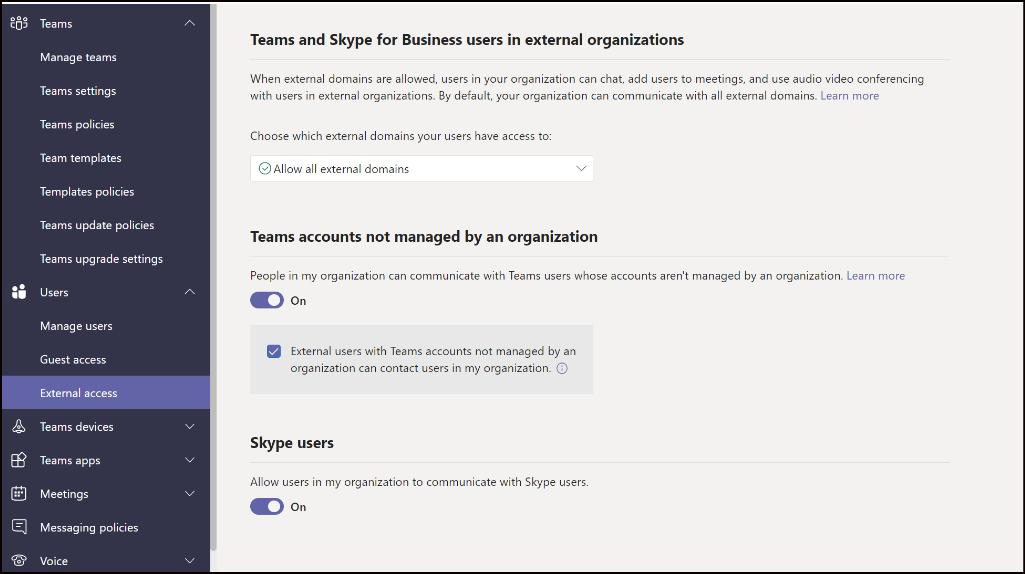
- External Access: Microsoft Teams allows users to communicate with external users through external access. This feature enables organizations to communicate with individuals who have accounts in other Office 365 tenants or with organizations that use Teams as their collaboration platform. With external access, users can initiate chat conversations, share files, and collaborate on projects seamlessly.
- Federated Chat: Federated chat takes communication with external users a step further by enabling conversations with individuals who are not on the Teams platform. Through federated chat, users can communicate with external parties who use other messaging platforms, such as Slack or Skype for Business. This feature eliminates the need for both parties to switch platforms, ensuring smooth and efficient communication.
Benefits of Communicating with External Users
- Seamless Collaboration: By leveraging external access and federated chat, organizations can communicate and collaborate effortlessly with individuals outside their immediate network. Then this reduces communication barriers and eliminates the need for constant platform switching, enhancing efficiency and collaboration.
- Stronger Partnerships: Communicating with external users fosters stronger partnerships and client relationships. By providing a unified platform for collaboration and communication, Microsoft Teams enables organizations to engage with external stakeholders more effectively, aligning goals and objectives.
- Enhanced Client Satisfaction: Facilitating communication with external users through Teams demonstrates a commitment to providing a seamless and efficient collaboration experience. Then this can contribute to higher client satisfaction and loyalty, as clients appreciate the convenience and ease of working together.
Conclusion: Teams add users as Guests or Talk to external users
With Microsoft Teams, organizations can harness the full potential of collaboration and communication, not only within their internal teams but also with external users, promoting a cohesive and inclusive working environment.
Share us
Get A Quote
Proud Blogs that
make us stand out
Recent Home
Terms & Conditions
Marketing and Feedback Terms and Conditions
General Terms and Conditions
Recent Home
S/4 Hana
SAP Fieldglass Resume Ranking setup
Ensure seamless SAP Integration | Secure Access | Auth0 with third-party APIs. Secure authentication &…
Recent Home
Awards
Peritos Wins Globalisation Excellence Award | MSME Star Stories 2024
Peritos Solutions is proud to be a winner in the “Globalisation Excellence” category at MSME…
Recent Home
Awards
Peritos Wins at NABH Quality Connect Fiesta 2024
Peritos proudly receives the NABH Quality Connect Healthcare Quality Pitch Award at the 2024 Competitions…
Recent Home
Awards
Peritos: New Zealand ICT Award Finalist for Technical Award 2025
Peritos Solutions has been named a finalist for the 2025 New Zealand ICT Technical Award,…
Thinking about a project? Get in touch with us.
Connect with Us Today through the Details Below or Fill
Out the Form for a Prompt Response
Book Free Consultation
Guaranteed response within 8 business hours.
Trusted by Startups and Fortune 500 companies
We can handle projects of all complexities.
Startups to Fortune 500, we have worked with all.
Top 1% industry talent to ensure your digital success.
Teams Record All Calls Not Just Meetings
Explore Teams Record All Calls, Not Just Meetings. Learn how to enable call recording and explore its limitations in the blog.
The Importance of Call Recording
Call recording has long been a staple in business communication systems, primarily for training purposes, dispute resolution, and compliance. It allows organizations to capture important conversations, extract relevant information, and maintain a record of discussions for future reference.
With the rise of remote work and dispersed teams, the need for call recording has only grown, as it becomes challenging to have face-to-face conversations. Microsoft Teams recognized this need and introduced call recording as a feature, enabling users to record their calls effortlessly. This feature has the potential to benefit various industries and professions, including customer support, sales, legal, and healthcare, where accurate and reliable call documentation is crucial.
Activating Call Recording
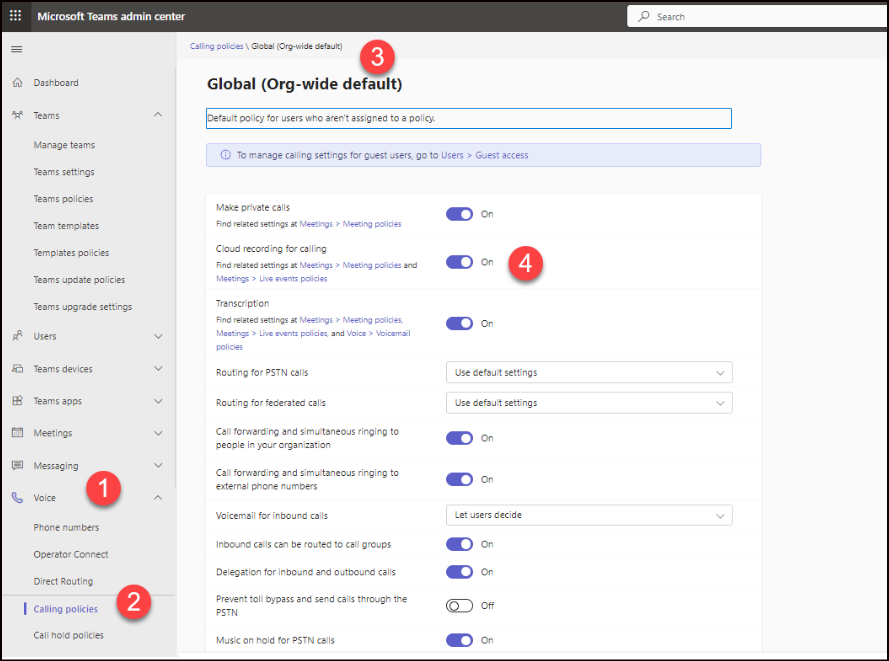
It is worth noting that all participants in the call receive a notification when the recording begins, promoting transparency and consent.
Current Limitation & setting to override

Enhancing Communication and Collaboration

Crucial role of call recording in Knowledge Retention and Training
Compliance and Legal Considerations
Conclusion: Teams Record All Calls, Not Just Meetings
Share us
Get A Quote
Proud Blogs that
make us stand out
Recent Home
Terms & Conditions
Marketing and Feedback Terms and Conditions
General Terms and Conditions
Recent Home
S/4 Hana
SAP Fieldglass Resume Ranking setup
Ensure seamless SAP Integration | Secure Access | Auth0 with third-party APIs. Secure authentication &…
Recent Home
Awards
Peritos Wins Globalisation Excellence Award | MSME Star Stories 2024
Peritos Solutions is proud to be a winner in the “Globalisation Excellence” category at MSME…
Recent Home
Awards
Peritos Wins at NABH Quality Connect Fiesta 2024
Peritos proudly receives the NABH Quality Connect Healthcare Quality Pitch Award at the 2024 Competitions…
Recent Home
Awards
Peritos: New Zealand ICT Award Finalist for Technical Award 2025
Peritos Solutions has been named a finalist for the 2025 New Zealand ICT Technical Award,…
Thinking about a project? Get in touch with us.
Connect with Us Today through the Details Below or Fill
Out the Form for a Prompt Response
Book Free Consultation
Guaranteed response within 8 business hours.
Trusted by Startups and Fortune 500 companies
We can handle projects of all complexities.
Startups to Fortune 500, we have worked with all.
Top 1% industry talent to ensure your digital success.
Microsoft O365 File Sharing Setting Guide: OneDrive & SharePoint
Explore the detailed Microsoft O365 File Sharing Guide for OneDrive & SharePoint, with step-by-step procedures and essential info.
Microsoft is heavily promoting Teams, which is a component of O365. Teams are being adopted at a faster rate than Slack. However, it’s important to note that Teams is built on SharePoint Online. If you don’t take precautions, you risk exacerbating an already complex and risky file-sharing issue in SharePoint. Despite this, O365 has valuable collaboration features essential in a fast-paced digital workplace. Collaborate with your colleagues by working on documents together, requesting feedback, and sharing links for easy access to your c. Because SharePoint is part of O365, it is integrated with Azure AD (Active Directory), Exchange Online, and OneDrive.
But with all this sharing and collaboration comes a downside – users may inadvertently share information with unintended recipients. Over time, O365 can become tangled with publicly accessible links, unrestricted access to sensitive data, and a permissions nightmare that requires management. In this blog, we will address some distinct security issues with SharePoint and discuss some best practices you can implement to manage O365 file sharing more effectively.
File Sharing Tools Comprised of O365
O365 File Sharing Basics
How to Locate Files: You might have OneDrive as an alternative in Windows Explorer, where you can see the sync status and modified date and use the Find field to find your files. You can also utilize the OneDrive website to see the exact information. And you can find the same folder in Teams.
How to Share Files on O365
This section covers what you need about file sharing and some different O365 file-sharing leads.
File Sharing Settings
Configuring Internal Sharing Settings
How to Transfer Files Internally
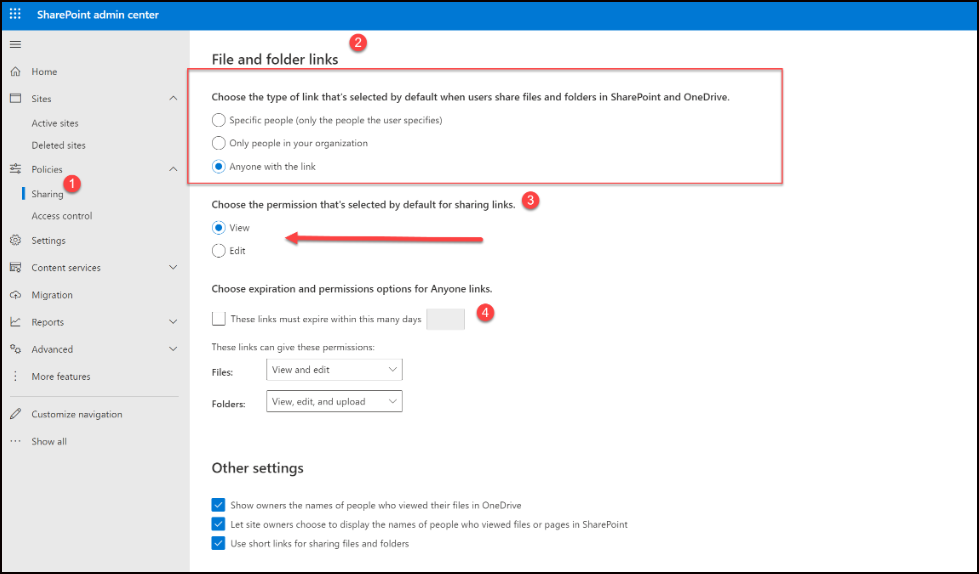
- To control access, use the first option to choose specific individuals, the second option to allow everyone in your organization, and the last option to grant access to anyone who can access the file, such as your team.
- Click the button to allow editing if required.
- Authorize or block download. Use block download on a discreet file to ensure there aren’t additional documents of that file flowing everywhere.
- Type the title of the person(s) you like to be able to see the file.
- Click on ‘Copy Link’
- Now share the link
How to accomplish External File Sharing Setting
- SharePoint Online
- Microsoft Teams
- OneDrive for Business
- O365 Groups
One option you have is to allow guest access and give external users guest access privileges so they can cooperate with your internal resources the exact way they would collaborate within their group.
conclusion
Share us
Get A Quote
Proud Blogs that
make us stand out
Recent Home
Terms & Conditions
Marketing and Feedback Terms and Conditions
General Terms and Conditions
Recent Home
S/4 Hana
SAP Fieldglass Resume Ranking setup
Ensure seamless SAP Integration | Secure Access | Auth0 with third-party APIs. Secure authentication &…
Recent Home
Awards
Peritos Wins Globalisation Excellence Award | MSME Star Stories 2024
Peritos Solutions is proud to be a winner in the “Globalisation Excellence” category at MSME…
Recent Home
Awards
Peritos Wins at NABH Quality Connect Fiesta 2024
Peritos proudly receives the NABH Quality Connect Healthcare Quality Pitch Award at the 2024 Competitions…
Recent Home
Awards
Peritos: New Zealand ICT Award Finalist for Technical Award 2025
Peritos Solutions has been named a finalist for the 2025 New Zealand ICT Technical Award,…
Thinking about a project? Get in touch with us.
Connect with Us Today through the Details Below or Fill
Out the Form for a Prompt Response
Book Free Consultation
Guaranteed response within 8 business hours.
Trusted by Startups and Fortune 500 companies
We can handle projects of all complexities.
Startups to Fortune 500, we have worked with all.
Top 1% industry talent to ensure your digital success.
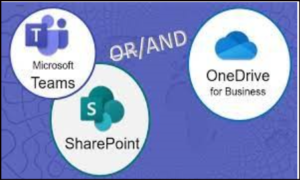
Teams vs. SharePoint vs. OneDrive
Comparing Teams vs. SharePoint vs. OneDrive, the article explores their ideal uses, unique features, and file-sharing/storage capabilities.
Discover which application best suits specific use cases and how these three solutions, Teams vs. Onedrive vs. SharePoint, can be used differently for file sharing and storage. Microsoft 365 contains a myriad of solutions, each of which is ideally suited for specific business use cases. However, it’s easy to misunderstand each application’s intended purposes and when each should be used.
It is especially true when it comes to storing files. Microsoft provides numerous on-premises and cloud storage options, including SharePoint, OneDrive, and Teams. These solutions are remarkably similar; the reality is that each tool features unique differentiators that make it more suitable for specific use cases than others. In this article, we’ll examine the differences between each platform, the advantages, and when we can use them.
Teams vs. OneDrive vs. SharePoint: A Closer Look at Microsoft’s File-Sharing Platforms
Microsoft Teams is an all-in-one collaboration platform included in the Microsoft 365 portfolio. It features tools such as chat, video calling, conversation boards, document storage, online meetings, and more. In addition to messaging, people can be organized into groups or teams and receive department-specific updates and general company information.
The cloud-based solution enables remote and local teams to communicate in real-time across various devices, including desktop and mobile. Teams also easily integrate with other Microsoft applications such as SharePoint, Exchange, and PowerPoint.
SharePoint
Created in 2001, SharePoint is a web-based solution where users can store, organize, access, and share files and information from any device. SharePoint is available in two versions: SharePoint Server, hosted locally on a business’s network, and SharePoint Online, hosted on Microsoft’s cloud environment and included in the Microsoft 365 portfolio.

OneDrive
OneDrive is Microsoft’s online, cloud-based storage solution and includes 1 TB of personal storage. Users can access files remotely from any device, including mobile devices, and , moreover, easily share them. The application is included with Microsoft 365, but users do have the option of licensing it separately.
When to Use Teams vs. OneDrive vs. SharePoint
Microsoft applications enable effective communication and collaboration for business teams. However, their subtle differences and unique features reveal their ideal uses. Find below a high-level summary of how each solution can utilize in business processes.
Feature | Teams | SharePoint | OneDrive |
Primary User(s) | Team | Team, Group, Organization | Individual & Team |
Great For | Project-oriented teams talk, work together in files, call, and meet right where the work is happening. Save all files and folders in one place. | Storing files in the cloud and sharing them with your team or organization, using robust permission management. | Cloud-based file storage and syncing, enabling universal access across devices. Perfect for collaboration, sharing, and work in progress. |
Sharing & Access Control | Teams can be public (open to anyone in your organization) or private (managed membership). | Share files with your team, organization, and external users. Can be specific to each site or specific files | Documents are private until you share them. Share files individually and work on Office documents with others simultaneously. |
Features | Fast, low effort creates a new team based on a template Communicate in real-time with teammates in a chat-based environment and online meetings. | Flexible, highly customizable, Workflows, Intranet content collaborating with the entire organization. Communication using SharePoint News. News can be added to your Teams channel, too. SharePoint has an Intranet of mostly all companies for sharing internal news, Content, and communications. | Fully integrated into Windows file Folder Comment on documents and use the @-sign with someone’s name. The person you mention receives mail with a link to your comment. Files and folder-based sharing with a group or individual users |
The team also creates a SharePoint site in the background | Stores files in OneDrive also provides enhanced sharing and security Features | Basic File storage to manage office apps files and to use offline and online versions |
Below, we’ll provide further information on the primary purposes for each platform as well as examples of when each application should be used.
SharePoint
SharePoint is ideal for storing and sharing files with many users. Additionally, The platform includes tools that enable users to seamlessly collaborate on and share documents, including version control, co-authoring, file preview, file sync, data governance and compliance, and more.
SharePoint’s focus on functionality differentiates it from Teams and OneDrive. For example, the flexible, customizable platform allows users to create an intranet to share documents, assign and complete tasks, schedule meetings, and more. Users can also consolidate all shared work environments within SharePoint, providing users with faster, easier access to company information, tasks, data, and more.
While Teams and OneDrive feature file storage, neither features additional functionality like SharePoint.
Teams
Both SharePoint and OneDrive feature collaboration tools such as comments, @ mentions, and the ability to collaborate on documents, but neither application has real-time, robust features like Teams.
OneDrive
OneDrive features both the file sharing and collaboration features of Teams and SharePoint but on an individual level. The cloud-based storage solution is ideal for storing personal business documents and, furthermore, files and sharing documents with a few colleagues. You can easily access files from mobile devices, and users can write or update records offline.
While users can co-author documents and view previous document versions, the application is limited in scope. Organizations with large business teams or a broad partner base will find the collaboration capabilities they need within Teams or SharePoint.
The application is ideal for storing personal or private documents as the application furthermore, provides all the security and accessibility needed for these projects.

To Sum Up- Leverage the Power of All Three Applications with Peritos: Teams vs. OneDrive vs. SharePoint
Together, these applications provide business teams with robust, intelligent tools that enable them to do faster. Then from Teams’ seamless collaboration capabilities to SharePoint’s and OneDrive’s secure file storage and sharing, users will enjoy modern applications designed to meet today’s business challenges. At Peritos, we support businesses in their efforts to integrate Microsoft solutions. Whether it’s Teams, SharePoint, OneDrive, or another Microsoft tool, we customize each to ensure it meets the team’s unique needs.
Additionally, We are a Microsoft partner and have helped multiple clients to embark on their journey in using O365 standard products. We also help to migrate from other applications to Microsoft, including email migrations or file migrations from Dropbox to O365. Talk to us and learn more about how you could make potential savings working with an authorized Microsoft partner.
Share us
Get A Quote
Proud Blogs that
make us stand out
Recent Home
Terms & Conditions
Marketing and Feedback Terms and Conditions
General Terms and Conditions
Recent Home
S/4 Hana
SAP Fieldglass Resume Ranking setup
Ensure seamless SAP Integration | Secure Access | Auth0 with third-party APIs. Secure authentication &…
Recent Home
Awards
Peritos Wins Globalisation Excellence Award | MSME Star Stories 2024
Peritos Solutions is proud to be a winner in the “Globalisation Excellence” category at MSME…
Recent Home
Awards
Peritos Wins at NABH Quality Connect Fiesta 2024
Peritos proudly receives the NABH Quality Connect Healthcare Quality Pitch Award at the 2024 Competitions…
Recent Home
Awards
Peritos: New Zealand ICT Award Finalist for Technical Award 2025
Peritos Solutions has been named a finalist for the 2025 New Zealand ICT Technical Award,…
Thinking about a project? Get in touch with us.
Connect with Us Today through the Details Below or Fill
Out the Form for a Prompt Response
Book Free Consultation
Guaranteed response within 8 business hours.
Trusted by Startups and Fortune 500 companies
We can handle projects of all complexities.
Startups to Fortune 500, we have worked with all.
Top 1% industry talent to ensure your digital success.
Dynamics 365 Marketing + Microsoft Teams Webinar
Learn how to use Microsoft Teams as a platform for Dynamics 365 Marketing events and function with teams webinar in our blog.
The blog describes how to employ Microsoft Teams as an online Dynamics 365 Marketing events meeting provider. Teams event functionality is integrated into the Marketing app, allowing you to use Teams webinar Dynamics integration for one/some to many online events and Teams webinars for interactive online sessions.
To operate Microsoft Teams webinar Dynamics integration as an online event provider, you must include a Microsoft 365 license to access the Teams service. You require the correct permissions to see the Teams Webinar possibilities as an element of the Streaming Provider checklist.
Schedule a Teams Webinar Dynamics Integration
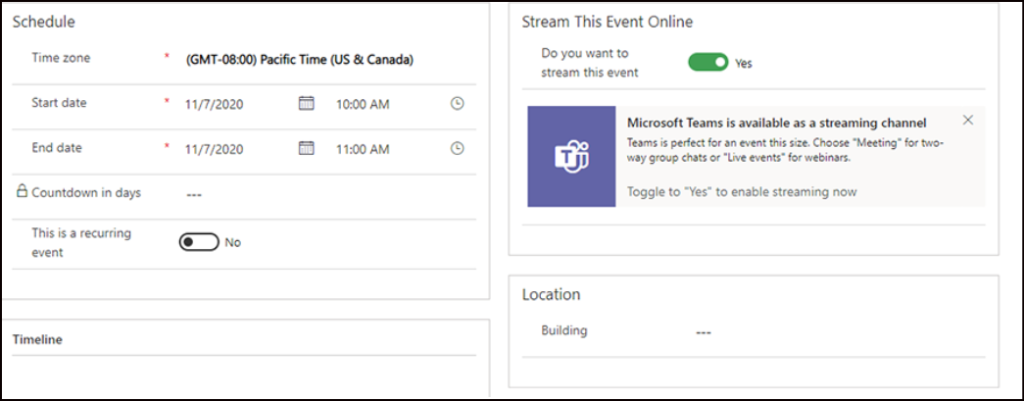
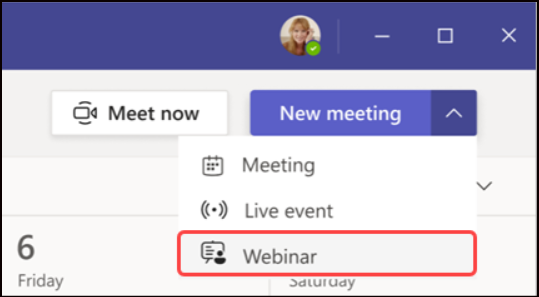
To create a Teams webinar Dynamics integration, choose Event Planning in the Marketing app location switcher, then pick Events in the left navigation pane. Select +New in the top ribbon.
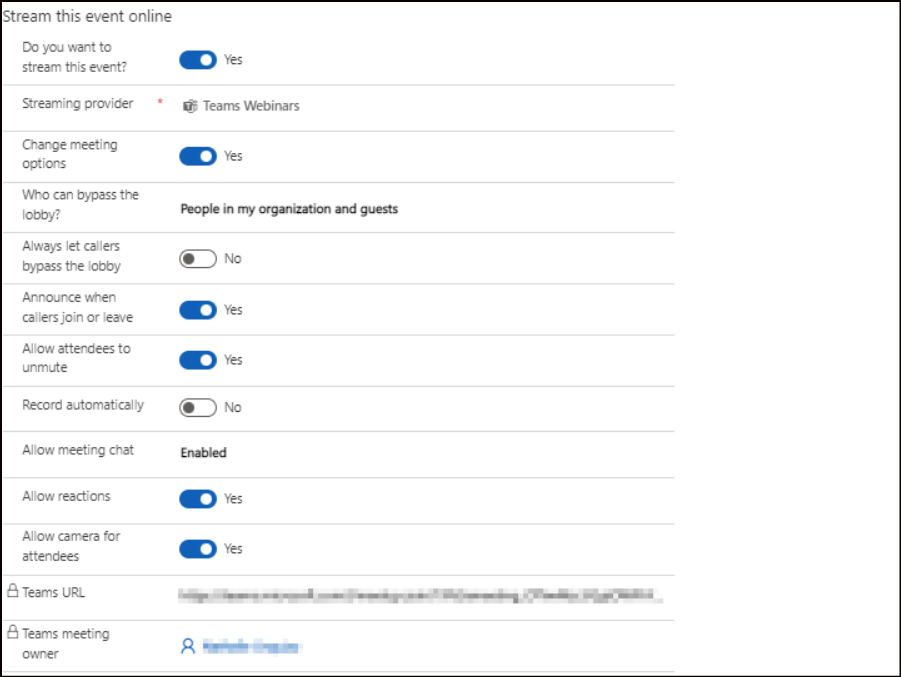
Note- The Event Format field is automatically selected and obscured from the event form. If you utilize a custom form, hide this field, and set the value to a Hybrid event. To visit the streaming options, select Do you want to stream this event and toggle to Yes.

Function with Teams Webinar
Use Teams webinars to construct online presentations. One or numerous presenters can share content, videos& audio. Moreover, Participants can view the content and optionally connect with the presenters. Audiences engross through responses, posting in the chat, or responding to poll questions. Attendees can’t share their audio, video, or content. You can only create “public” Teams webinars from Dynamics 365 Marketing. Then these events are open to anyone who is registered for the event.
Allow Teams Webinar with Dynamics 365 Integration
To enable Teams webinars, the renter administrator must designate the policies below. These setting options ensure that anyone, including anonymous users, can register for webinars. To execute the settings, run the following PowerShell commands:
- Turn on meeting registration
- Turn on private meeting scheduling
- Permit anyone, including anonymous users, to register for the webinars
Teams Webinar with Dynamics 365 Integration Settings
The default webinar settings are configured to deliver the most suitable attendee and presenter experience. Nevertheless, you can readily tweak these settings from your Dynamics 365 Marketing event. Set the Change meeting options to switch to Yes to alter the default settings. Then it reveals the webinar settings, which you can adjust per event.

Invite a Guest to the Teams Webinar Dynamics Integration
- Know more about adding guest users: Guest to present. Ensure you add the guest user to your Teams instance. You only must do this one time.
- As a most helpful practice, Teams suggests forming a channel for producers and presenters to chat and share information before the event. Producers can publish the event link to the channel to make it comfortable for guests to attend the event. Only visitors who have Microsoft 365 credentials will see the calendar in Teams.
- Count a guest as a presenter in your Teams Webinar Dynamics Integration by adding them as speakers in your event or session in Dynamics 365 Marketing.
How to View Webinar Engagement Data
How to Setup an Event/ Session for Broadcast as Webinar
The following steps are required to configure a Session or an event for broadcast as a webinar:
- Log in to Dyn365 Marketing & open the event or Session you like to set up as a Webinar.
- On the Event or Session page, see the Format setting (on the General tab) and place it to Webinar (for Webinar only).
- The General tab must now include a Webinar Setup section. Make the following settings:
- Webinar Configuration: Identify the webinar configuration record you will use for this event or Session. Choose the magnifying glass icon for this domain, then select a configuration. This configuration record confirms the webinar provider and understands that you’ll use it to run the Webinar. Your admin should create configuration access for each webinar provider your organization uses; typically, you will have one. Therefore, Talk to your admin if you need help deciding which to choose.
- Webinar Type: Choose the webinar type. This setting can affect the features available to presenters and attendees of the Webinar. Your webinar provider establishes the available options, so don’t hesitate to reach your provider if you need more details about which type to choose.
- Language: Select the language the Webinar will be presented in.
- Producer: Choose the event team member accountable for handling the Webinar during the event. Then click here for more details: Set up your event team.
- Let the event or Session save itself (usually every few secs), or choose Save in the window’s lower-right corner to save it immediately. As soon as you’ve had an event with a valid webinar configuration, Dyn365 will form the Webinar in your webinar provider’s system, which will substitute the following values:
- The Webinar URL: Link to the Webinar at the webinar provider, Dynamics 365 Marketing, utilizes this link to synchronize signups and metrics between the two systems.
- The Presentation Manager URL: Link that the presenter can use to manage their presentation
Mail the Webinar URL to the Attendees
Or, if you want to send out the links yourself, one way is to set up a customer journey with an event tile followed by a stimulus tile that reacts to event signups and then an email tile that sends a message with the URL to per contact that registers.
Upholding Dyn365 Marketing & Teams in Sync
A user with access to an event record and approval to edit the description in Dyn365 Marketing can cause any change to a record. However, since the exact user may not have completed the corresponding webinar, live event, or meeting in Teams & thus may not be the “Teams Meeting owner,” the changes the user creates to an event record in Marketing aren’t propagated to Teams. This functionality is identical to functionality within Teams, where a user can’t modify a live event or meeting created by another user.
In scenarios where event record changes aren’t propagated to Teams, then the Marketing app displays a warning to any user who isn’t the Teams meeting owner. If the Teams meeting owner opens the event record, they’ll see a Sync with Teams button in the ribbon. Selecting the Sync with Teams button syncs the changes to the event by any non-owner users.
To Conclude, You Can Find out more Here: Teams webinar + Dynamics 365 Marketing.
- Read Microsoft’s announcement: Dynamics 365 and Microsoft Teams: extend collaboration across teams
- Access the complete set of presentations from Ignite 2021 at myignite.microsoft.com, including:
- D365 and Teams: Overcoming Distractions to Build Stronger Customer Relationships
- Microsoft Teams + Dynamics 365: The unified collaboration platform for modern business
Share us
Get A Quote
Proud Blogs that
make us stand out
Recent Home
Terms & Conditions
Marketing and Feedback Terms and Conditions
General Terms and Conditions
Recent Home
S/4 Hana
SAP Fieldglass Resume Ranking setup
Ensure seamless SAP Integration | Secure Access | Auth0 with third-party APIs. Secure authentication &…
Recent Home
Awards
Peritos Wins Globalisation Excellence Award | MSME Star Stories 2024
Peritos Solutions is proud to be a winner in the “Globalisation Excellence” category at MSME…
Recent Home
Awards
Peritos Wins at NABH Quality Connect Fiesta 2024
Peritos proudly receives the NABH Quality Connect Healthcare Quality Pitch Award at the 2024 Competitions…
Recent Home
Awards
Peritos: New Zealand ICT Award Finalist for Technical Award 2025
Peritos Solutions has been named a finalist for the 2025 New Zealand ICT Technical Award,…
Thinking about a project? Get in touch with us.
Connect with Us Today through the Details Below or Fill
Out the Form for a Prompt Response
Book Free Consultation
Guaranteed response within 8 business hours.
Trusted by Startups and Fortune 500 companies
We can handle projects of all complexities.
Startups to Fortune 500, we have worked with all.
Top 1% industry talent to ensure your digital success.
How to Host Webinars with Microsoft Teams Efficiently
The blog talks about How to Host Webinars efficiently with Teams and steps for scheduling a Microsoft Teams webinar
In the early 90s, the conception of the Webinar revolutionized the lead-gen game. Today, webinars are still an effective way to reach a broad audience across time zones and continents. And a well-presented webinar can always generate exceptional sales leads. Most organizations have hosted webinars outside of their Microsoft or Google stack. But lately, the Teams Webinar entered the party—making Microsoft Teams conduct webinars even more of a one-stop shop.
Schedule a Teams Conduct Webinar when you have one or a few presenters but want to provide value and incentives to new leads. Webinar attendees can share responses, post to the chat, and answer poll queries. Microsoft Teams Conduct Webinars equip the tools to organize your Webinar, register attendees, conduct an interactive presentation, and explore attendee data for effective follow-up.
Webinar Roles and Authorizations
The Organizer
- Plans the Webinar well in advance, usually by several weeks.
- Organizes a registration form that each prospective attendee must fill out before acquiring the Webinar join info.
- The form can assemble useful info for post-webinar sales references, for example, or for measuring training effectiveness.
- Sends out the webinar invite. If the Webinar features more presenters, the invite goes to them. (After this step, the registration link for probable attendees becomes active.)
- Displays the event details and registration link with potential attendees. It can be on social media, a website, via email, or another mode.
- Downloads the enrolment report for data concerning who registered and how they reacted to the registration questions.
The Presenter
The Attendee
- Registers for the event/webinar.
- Receives an email retaining webinar info & the link to join.
- People can join webinars on iOS & Android mobile and tablet devices and their computers too.
- Always send webinar reminders to improve Registration and Attendance.
Prepping for a Teams Webinar
- Webinar topic and description
- Date, time, and duration
- Presenter(s) and bios
- Media creation (slide deck, videos, etc.)
- Landing pages, social posts, and email campaigns
- Registrant information (name, email, address, industry, job title, organization)
Scheduling the Teams Conduct Webinars
Next, click View registration form to customize the form. It includes speaker bios, an event image, and any information you want to collect from registrants.
Back on the scheduling page, click Send to invite presenters. This event will also show up on your presenters’ Teams’ calendars. Sending the event will activate the registration link. Now you’re ready to invite attendees.
Inviting Attendees & Adjusting Settings
Copy the registration link to share it via email, social platforms, a Teams channel or chat, Yammer, SharePoint, or a corporate website.
Have you misplaced your registration link? To find it again:
- Open your Teams calendar and double-click the webinar event for details.
- Click Copy Registration link.
- If you still need help finding the link, view the Customize registration form and copy the link from there.
Note: Certain settings are only accessible after scheduling the Webinar—e.g., lobby restrictions, participant audio and video, and chat settings. After preparing the Webinar, adjust for specific needs.
Hosting the Teams Conduct Webinar
When it’s time to kick off your Webinar, start it just like you would a regular Teams meeting by clicking the webinar event and selecting Join. If you’re presenting, turn your camera and mic on, and click Join Now.
To adjust settings during the Webinar, click More Actions. On the menu, click Meeting options to change the attendee experience, including the lobby, mics and cameras, and reactions.
Downloading the Attendance Report teams webinar
Now that the Webinar is over, it’s time to see how things went.
To find out, open your Teams calendar and double-click the webinar event for details. Next, click the Attendance tab to view the data within Teams. To download data, click the Details tab and then Attendance.
In the course of the teams Webinar
- In a public (open registration) webinar, attendee audio & video are turned off by default and can’t convey content.
- When attendees choose the Join link, they stay in the lobby till the time the organizer or a presenter allows them in.
- The Presenter handles the audience participation.
- Polls can be used during the Webinar to engross the audience and feed info to the Presenter.
After the teams Webinar
- The organizer downloads the attendance report.
To Conclude: how to host teams webinars efficiently
Note: If you want to schedule a public webinar but can’t, contact your IT admin.
Eager to know more? Contact us at info@peritossolutions.com
Share us
Get A Quote
Proud Blogs that
make us stand out
Recent Home
Terms & Conditions
Marketing and Feedback Terms and Conditions
General Terms and Conditions
Recent Home
S/4 Hana
SAP Fieldglass Resume Ranking setup
Ensure seamless SAP Integration | Secure Access | Auth0 with third-party APIs. Secure authentication &…
Recent Home
Awards
Peritos Wins Globalisation Excellence Award | MSME Star Stories 2024
Peritos Solutions is proud to be a winner in the “Globalisation Excellence” category at MSME…
Recent Home
Awards
Peritos Wins at NABH Quality Connect Fiesta 2024
Peritos proudly receives the NABH Quality Connect Healthcare Quality Pitch Award at the 2024 Competitions…
Recent Home
Awards
Peritos: New Zealand ICT Award Finalist for Technical Award 2025
Peritos Solutions has been named a finalist for the 2025 New Zealand ICT Technical Award,…
Thinking about a project? Get in touch with us.
Connect with Us Today through the Details Below or Fill
Out the Form for a Prompt Response
Book Free Consultation
Guaranteed response within 8 business hours.
Trusted by Startups and Fortune 500 companies
We can handle projects of all complexities.
Startups to Fortune 500, we have worked with all.
Top 1% industry talent to ensure your digital success.