How to modify S/4 Hana email template
The article provides an insight on S/4 Hana Creating Custom Analytical Query for reporting and analysis by following these easy steps.
How to modify SAP S/4 Hana email template
In this blog, we discuss how to modify the S/4 Hana email template as per business requirements and add system fields. Also includes, saving changes and moving changes over to the production. The beauty of SAP S/4 Hana email template is all of this can be done by one consultant or the end-user themselves with just a little training no need to have the Basis, Functional and technical part of your team .
- There are no Tcode, Just type what you want.
- No Debugging just look around and find the details
- No code changes just a simple text-based editor
- No need to ask the basis team to release and import TR it can just be done by following simple export and import rules. So overall makes it easy but I still took time to get familiar with the new way of doing things more easily in the cloud, I miss the old Tcode based approach
Steps on How to modify SAP S/4 Hana email template
- Find the template to update
- Updating the email content, adding system fields
- Steps to import and export the changes from the Dev to the production system
Find the email template to update
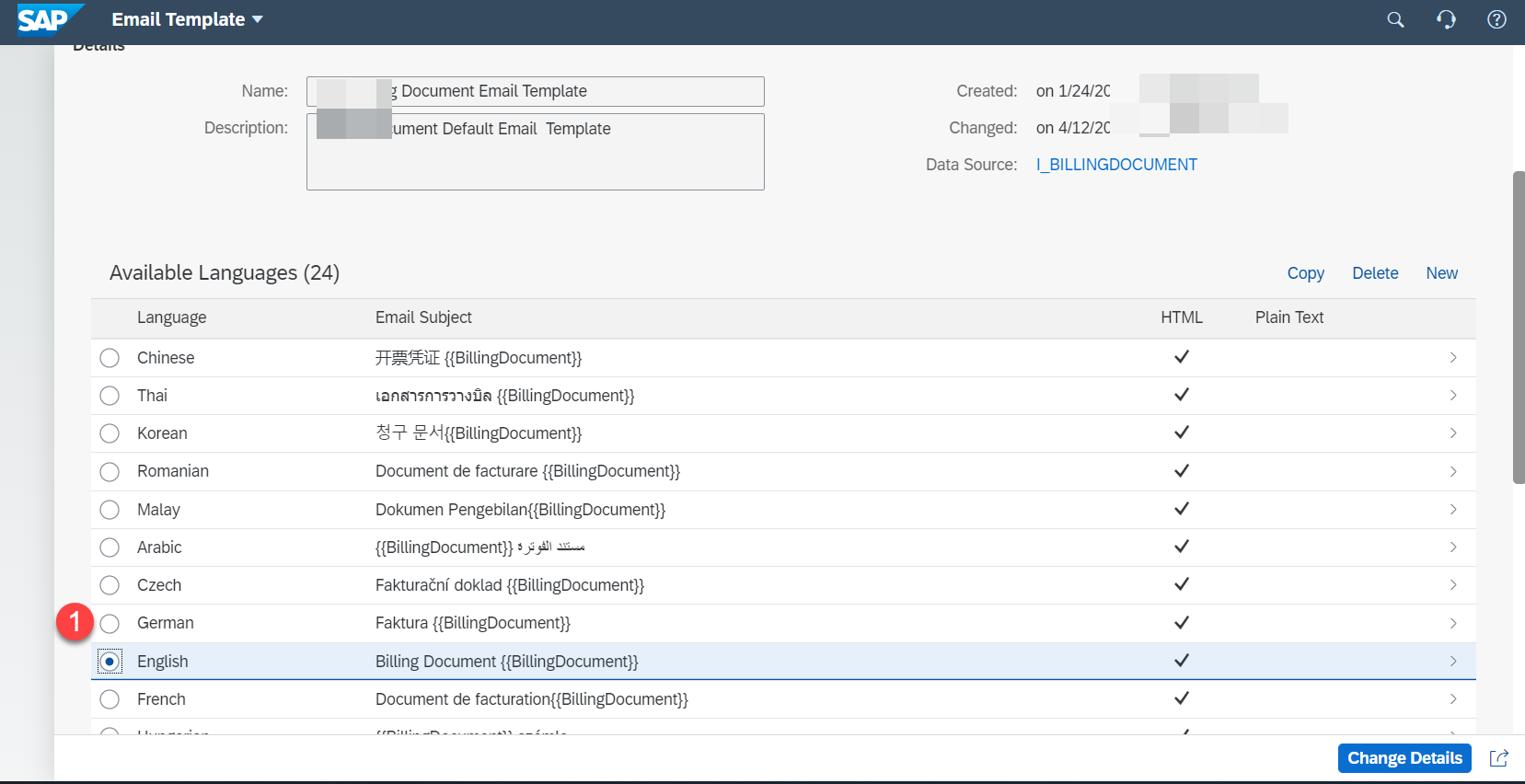
Open the “ Maintain email template “ app which would list down all the pre-delivered and custom templates as seen below
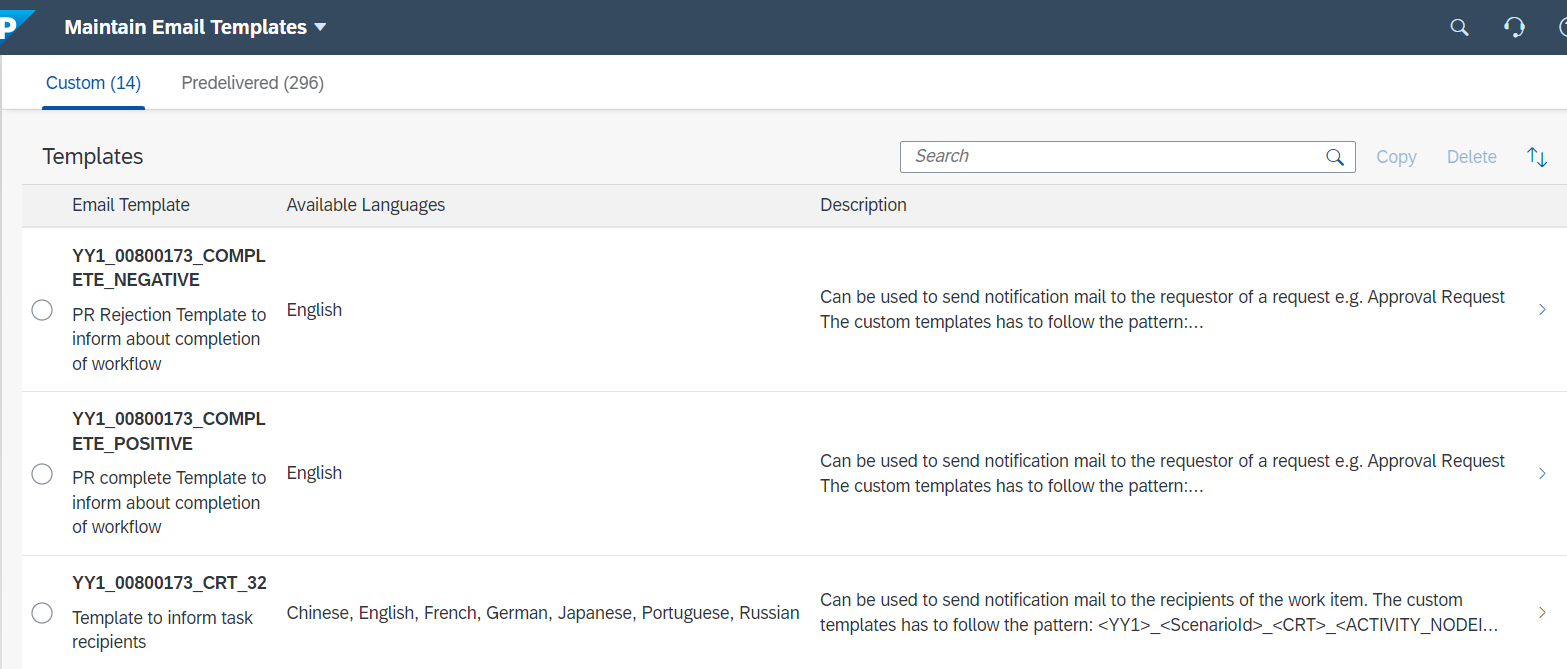
Check some options available below
- Click on Change details to update the name of the template etc.
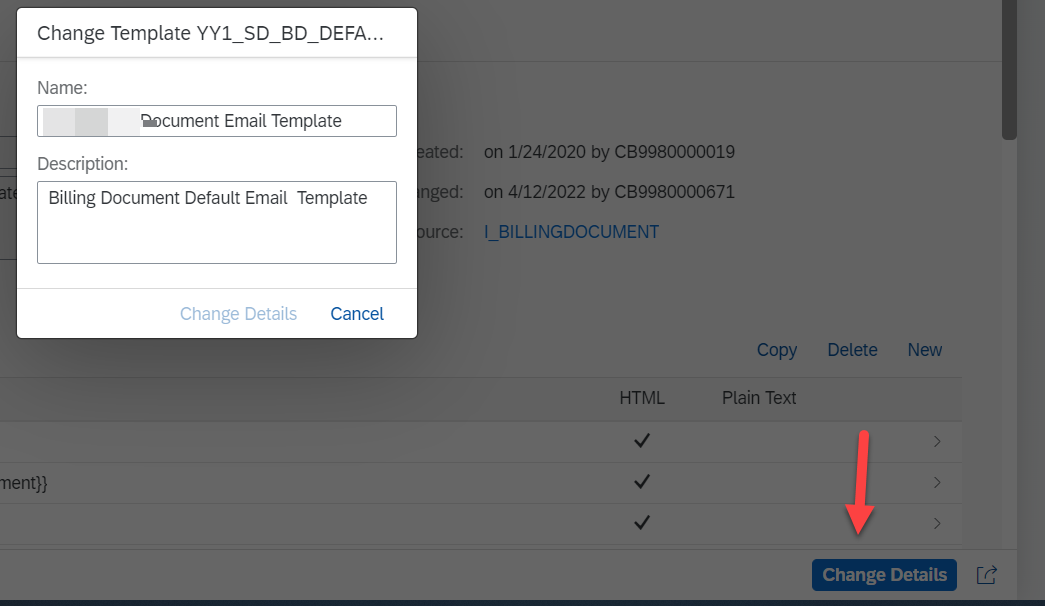
- You could also copy the template, Create a new one or delete it with the buttons showing up at the top of the table

- Open the template by Selecting the language and then click on it
Updating the email content and adding System fields
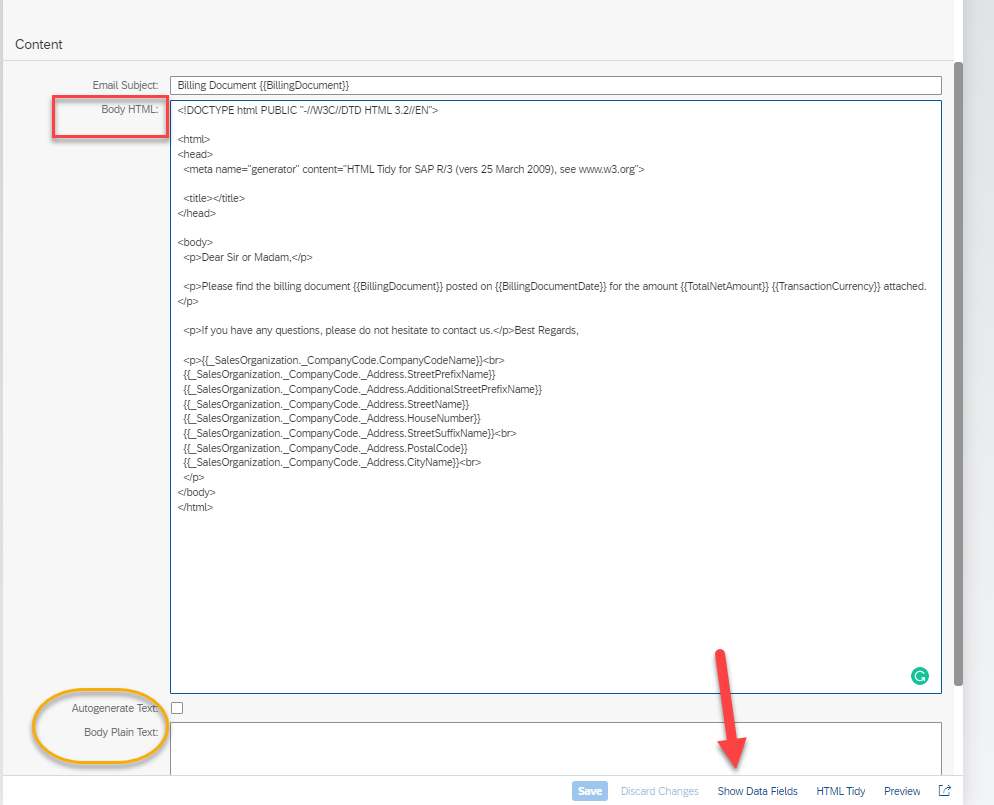
In the next screen you could add your text in the Body HTML tag section with the right HTML tags as you see below. Note there is also an option for adding Body Plan text as seen with the yellow box but then it does not have the proper formatting. If you are looking for Hyperlinks, Bold, line breaks and para breaks to be shown using Body HTML
Arrow indicates how you could add system fields. I am adding a copy of how we used the organization fields in the email.
Dear Sir or Madam,
Please find the billing document {{BillingDocument}} posted on {{BillingDocumentDate}} for the amount {{TotalNetAmount}} {{TransactionCurrency}} attached.
If you have any questions, please do not hesitate to contact us.
Best Regards,
{{_SalesOrganization._CompanyCode.CompanyCodeName}}
{{_SalesOrganization._CompanyCode._Address.StreetPrefixName}}{{_SalesOrganization._CompanyCode._Address.AdditionalStreetPrefixName}}{{_SalesOrganization._CompanyCode._Address.StreetName}}{{_SalesOrganization._CompanyCode._Address.HouseNumber}}{{_SalesOrganization._CompanyCode._Address.StreetSuffixName}}{{_SalesOrganization._CompanyCode._Address.PostalCode}}{{_SalesOrganization._CompanyCode._Address.CityName}}

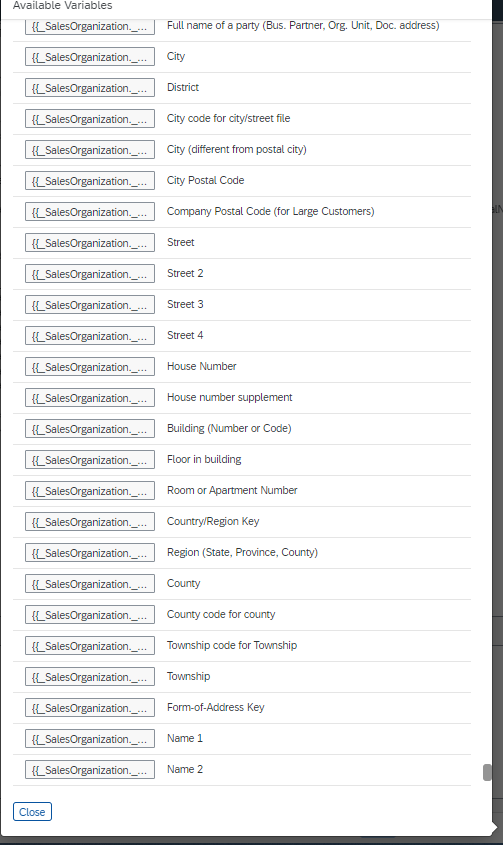
In order to add system, fields click on the “ Show data fields” option and a dialog box opens up with all available fields
There is no search on this dialog box so after scrolling for 5 minutes I came down to S where I see all my sales org specific fields which I wanted to use which I copied from the list and then added to the Body HTML and save the changes
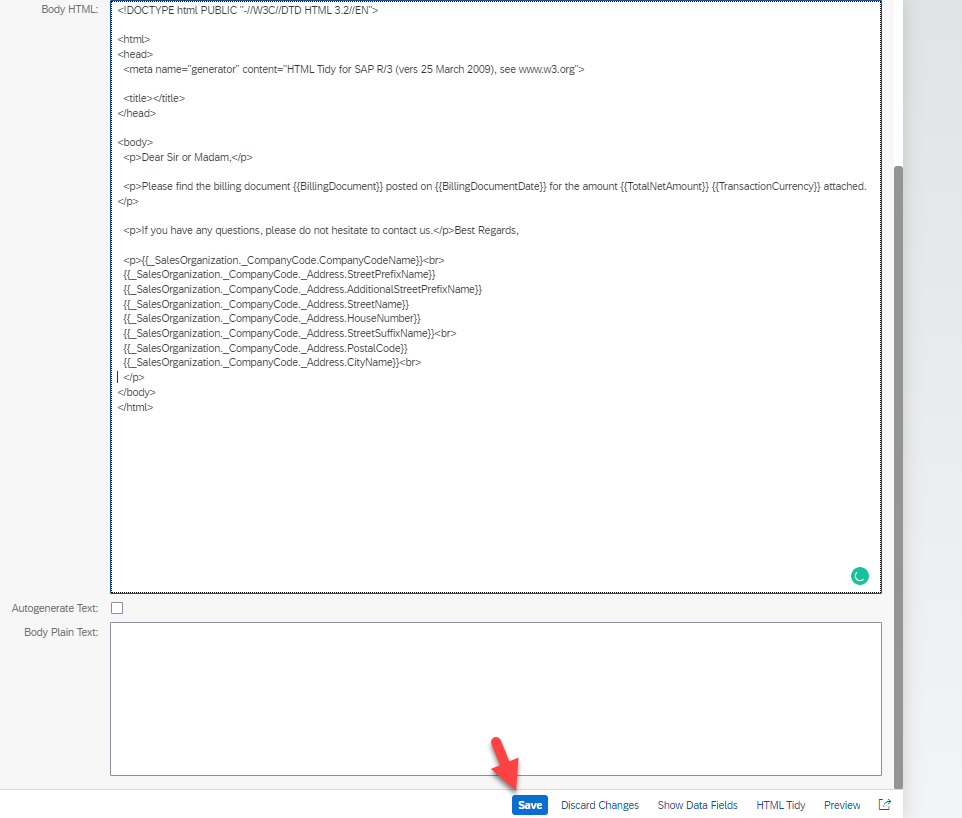
This completes the changes to be done for the email
Moving changes to production
Now go to the export software collection app and add items

To add items look for Form Template and you would see the email template you modified listed below .
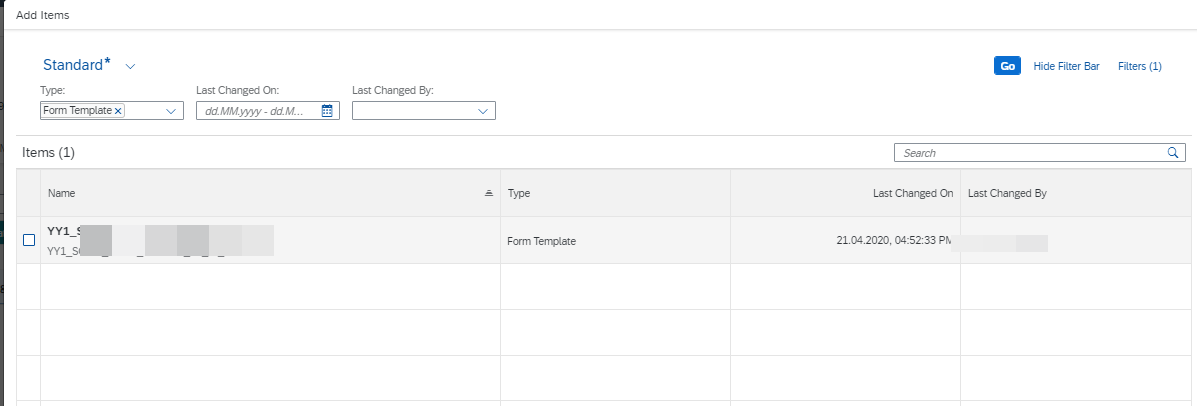
If however, the changes do not reflect here then please ensure that it is not part of any other collection. As a change can be part of only one collection if this was modified before and sent to production it would continue showing in the same collection with a different version
Even if different users make changes it keeps updating the same collection with a new version as you could see below.
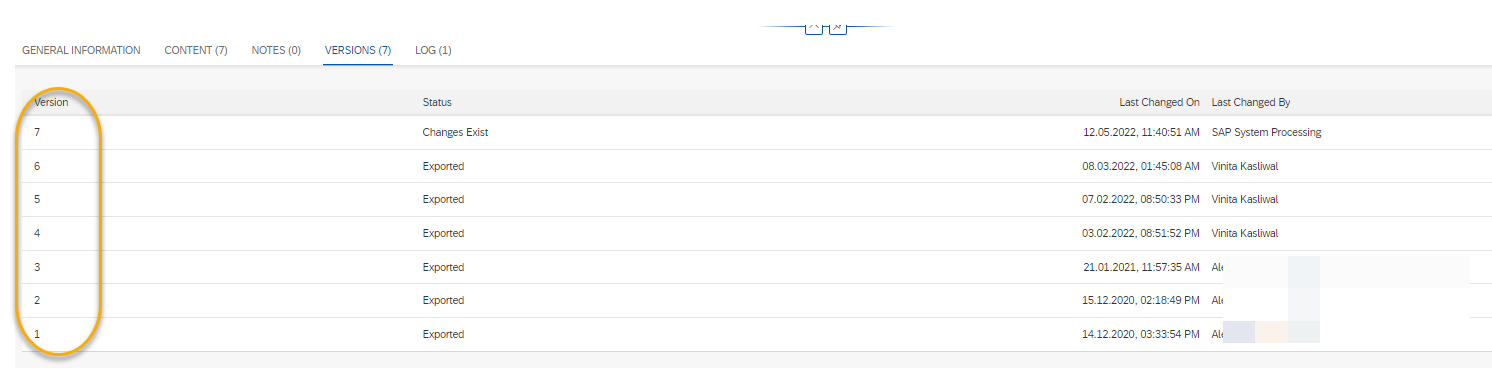
Once added it shows the email template as a line item as seen below. Now click on Export and it would then allow sending this change to production

In production ensure to use the import collection app and import the changes


Conclusion: How to modify SAP S/4 Hana email template
This completes the process and steps on how to modify SAP S/4 Hana email template. We are now able to complete the changes to the email template in S/4 and send changes from Dev to the Production system.
Thanks for reading hope you liked the article and found it useful
Read the Article posted on SDN here
Share us
Get A Quote
Proud Blogs that
make us stand out
Recent Home
Terms & Conditions
Marketing and Feedback Terms and Conditions
General Terms and Conditions
Recent Home
S/4 Hana
SAP Fieldglass Resume Ranking setup
Ensure seamless SAP Integration | Secure Access | Auth0 with third-party APIs. Secure authentication &…
Recent Home
Awards
Peritos Wins Globalisation Excellence Award | MSME Star Stories 2024
Peritos Solutions is proud to be a winner in the “Globalisation Excellence” category at MSME…
Recent Home
Awards
Peritos Wins at NABH Quality Connect Fiesta 2024
Peritos proudly receives the NABH Quality Connect Healthcare Quality Pitch Award at the 2024 Competitions…
Recent Home
Awards
Peritos: New Zealand ICT Award Finalist for Technical Award 2025
Peritos Solutions has been named a finalist for the 2025 New Zealand ICT Technical Award,…
Thinking about a project? Get in touch with us.
Connect with Us Today through the Details Below or Fill
Out the Form for a Prompt Response
Book Free Consultation
Guaranteed response within 8 business hours.
Trusted by Startups and Fortune 500 companies
We can handle projects of all complexities.
Startups to Fortune 500, we have worked with all.
Top 1% industry talent to ensure your digital success.