
SAP How to create custom CDS view

SAP How to create custom CDS view

This Article talks about SAP S/4 Hana- How to create custom CDS view for an application easy for the end-user.

SAP How to create custom CDS view

Introduction- SAP Create Custom CDS View

SAP Create Custom CDS View can be used to generate the user’s own data access, in case they require access to data in the ERP system which is either not available in the standard apps or a report is needed to give more visibility to stakeholders or to create custom application that reads data from SAP.

Generally, the data of an application is spread across numerous database tables. SAP create custom CDS view that permits you to model the data access without altering underlying database tables. You can reorganize the table fields and define the metadata of the fields that fit into one object but then are set in different databases. Follow these steps when you are ready to create an app through the SAP create Custom CDS view.

Below is the summary of the steps we would be following 

  1. Creating CDS View
  2. Specify Join condition
Check the logs and publish the CDS view which would be ready to use. 

Create Custom CDS view

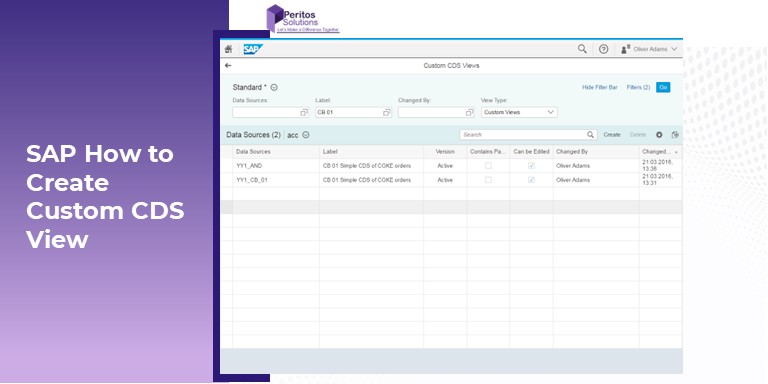
Custom CDS view to create an app. Go to Custom CDS view and click on create to add new

Table Description automatically generated with low confidence

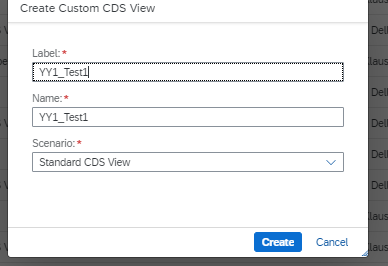
Specify the CDS view name, Label and scenario get automatically selected

However, I prefer to create an analytical dimension

Note the scenario once selected cannot be changed later.
SAP How to create custom CDS view

SAP How to create custom CDS view

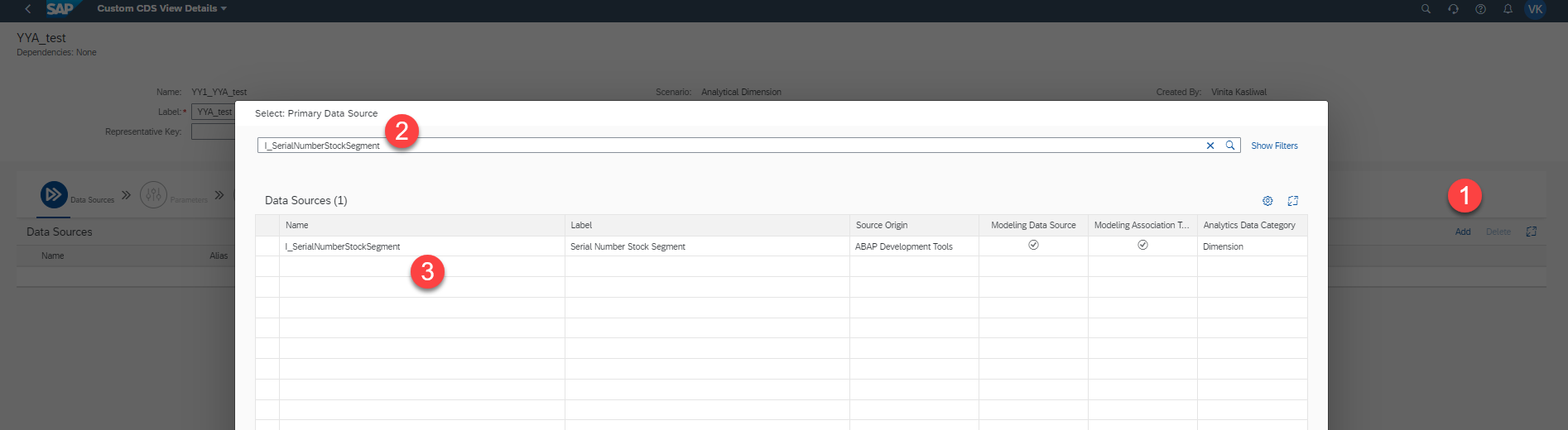
Create the CDS view and then click to add data source 

  1. Click on Add button
  2. Type the data source in the search
  3. Select the data source

Note that it would show you the data source based on the Analytics data category so if your CDS view was a standard CDS view the Analytics data category if dimension would not show up

Graphical user interface, application Description automatically generated

This adds the primary data source. Now we add the associated data source to this

Graphical user interface, application, Teams Description automatically generated

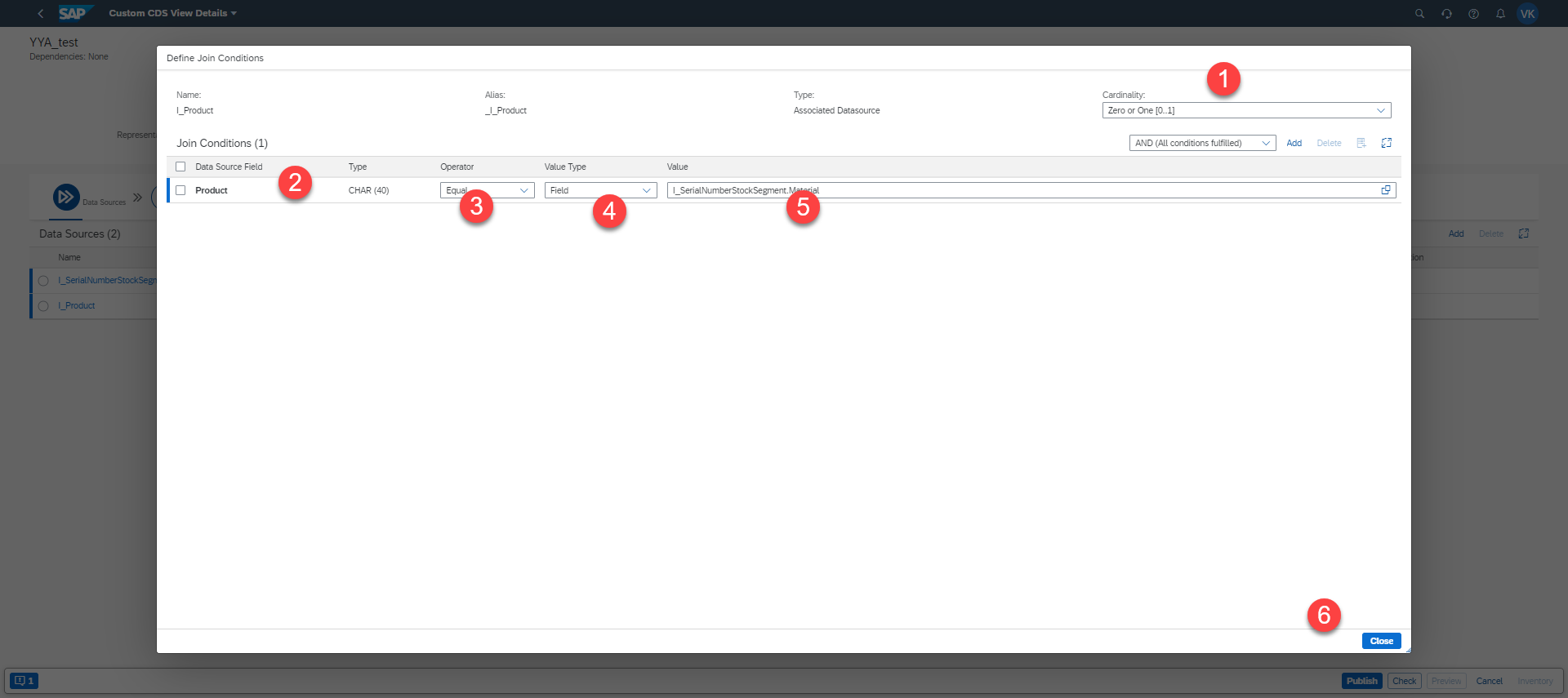
And now add the join condition between primary and associated data sources

Specify Join condition

  1. Select cardinality
  2. Select how both primary and associated data sources are connected as seen below
Graphical user interface, application Description automatically generated

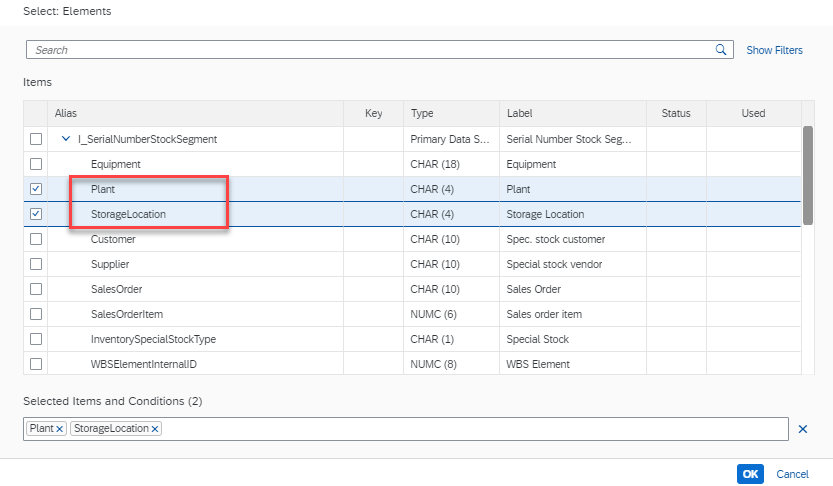
And select the fields needed from both views by selecting the specific field.

Table Description automatically generated

So the fields show on the Elements screen now which was selected

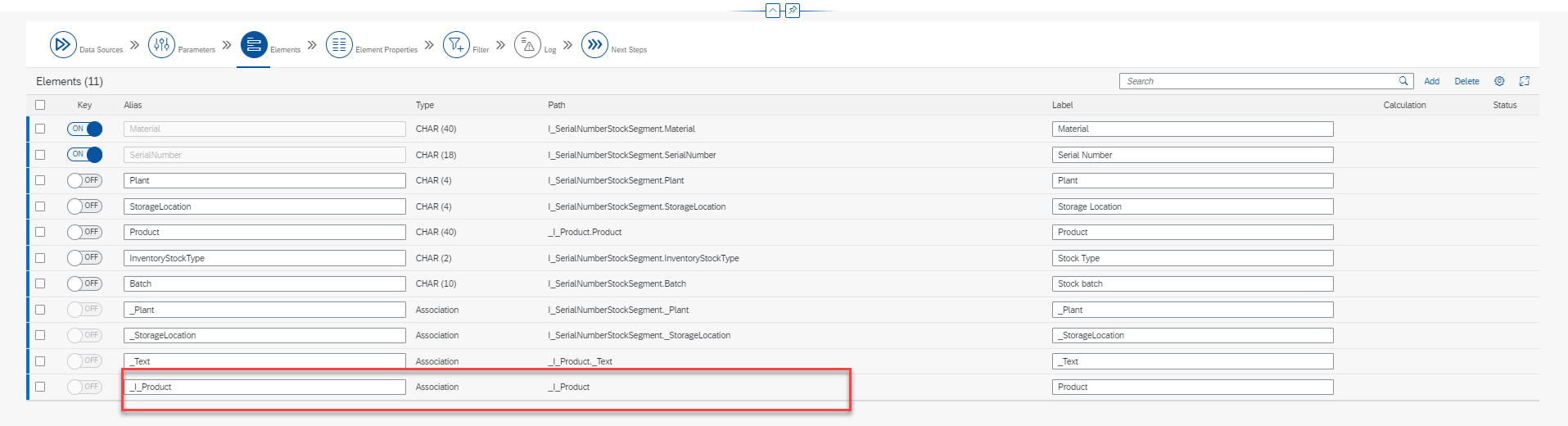
Also remember to select the entire I_product and add as its own reference as highlighted below

Graphical user interface, text, application, email Description automatically generated

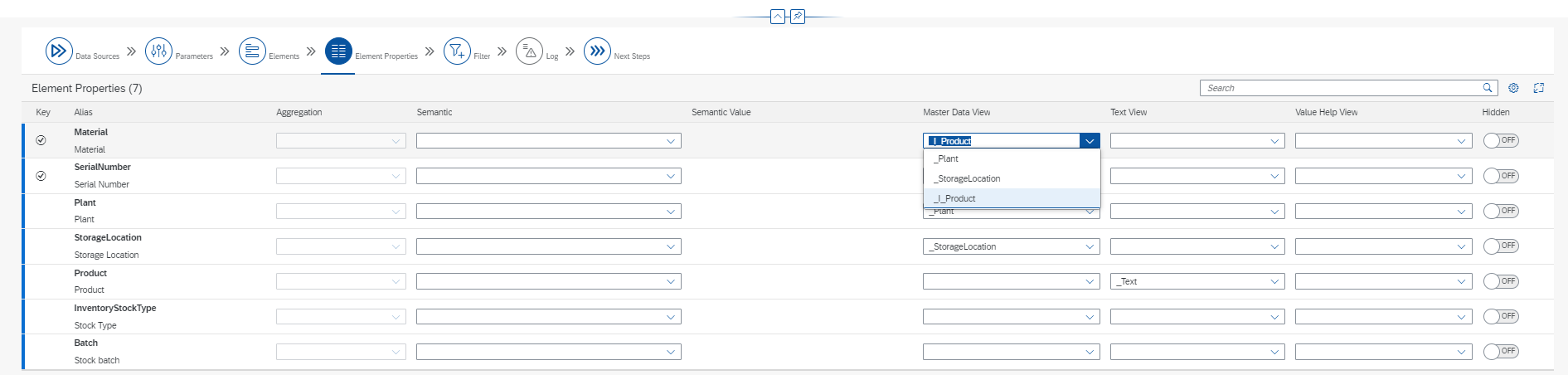
In the element Tab, you could specify the master data view. It is not mandatory but sometimes it does give errors. If it does not show the right view in the dropdown then use the previous step to add to the elements section where you could see _i_Product and then it would show up in the dropdown as below

Graphical user interface, application Description automatically generated

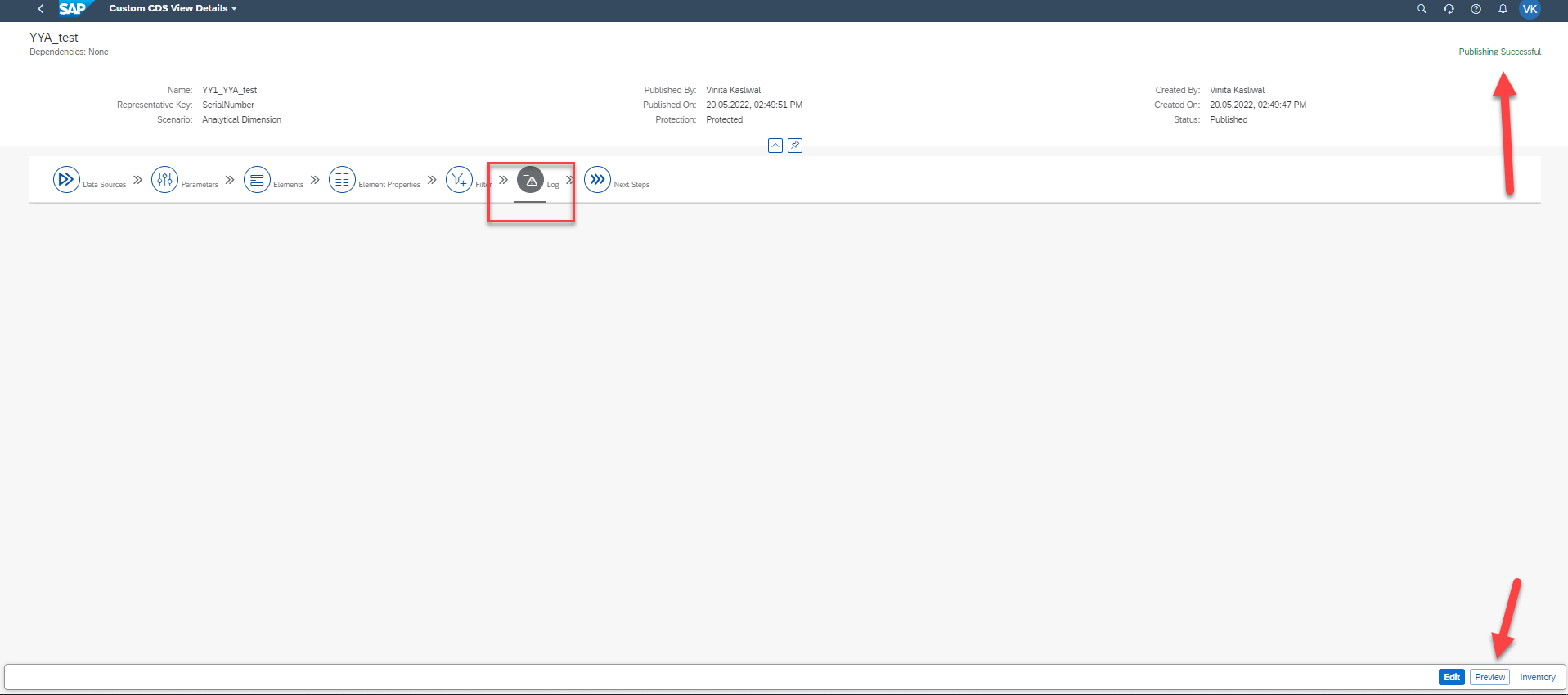
Check the log there should not be any error and publishing should be successful. Click on preview

Graphical user interface, application, Teams Description automatically generated

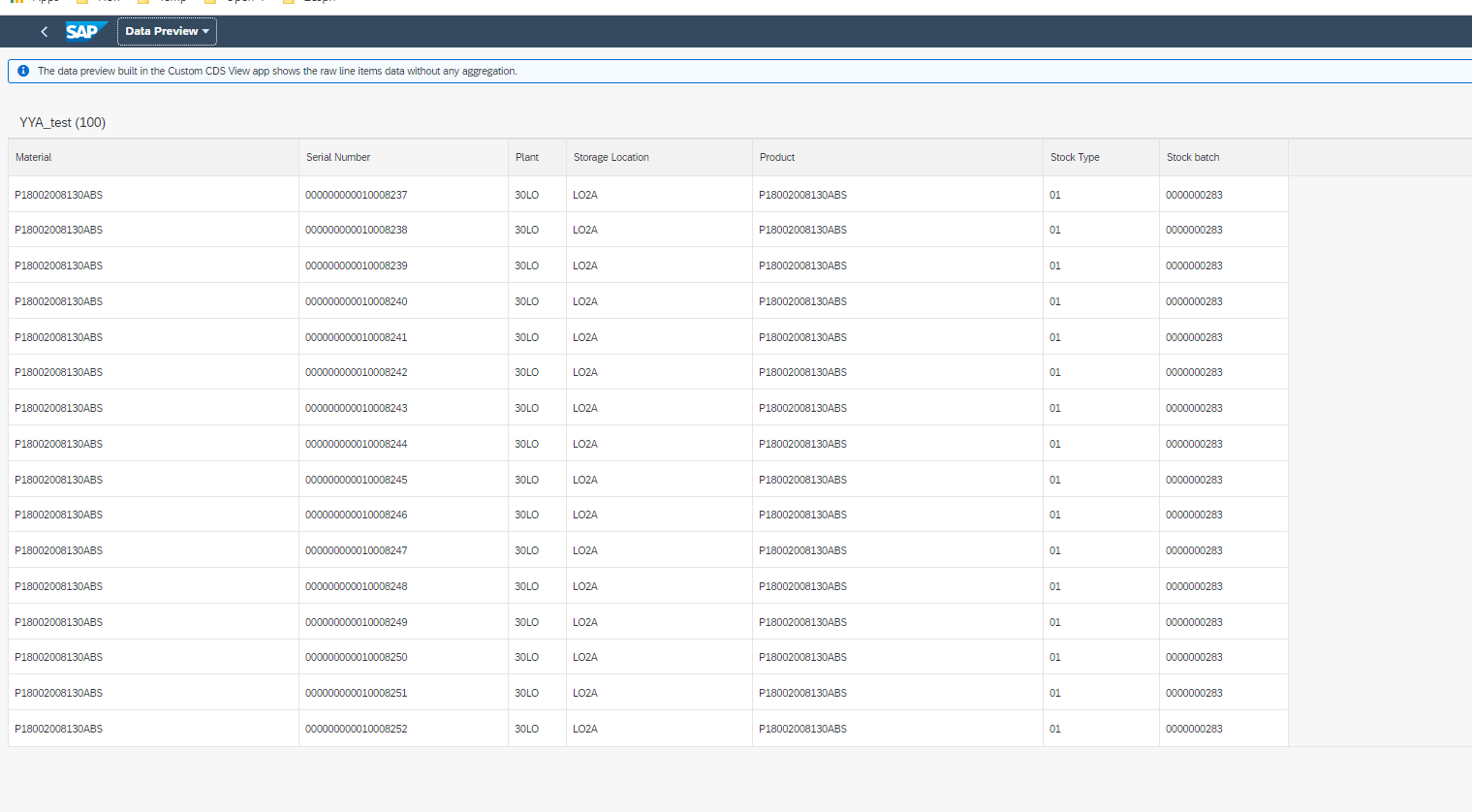
Check Preview and it opens up the next view where you would see the result of the CDS view created.

Graphical user interface, application, table Description automatically generated

Conclusion – How to Create Custom CDS View

In this article, we talked about the steps used to create an app with the help of the Custom CDS View. Which in general, are intended to be consumed by a UI, analytics, or other systems.

Follow these steps and it should be easy to create a Custom CDS view in the system.

If you would like to know how to use this CDS view created to create a custom analytical query please refer the blog  How to create Custom Analytical Query

Proud Blogs that
make us stand
out

SAP Fieldglass Resume Ranking setup Recent Home

S/4 Hana

SAP Fieldglass Resume Ranking setup

Ensure seamless SAP Integration | Secure Access | Auth0 with third-party APIs. Secure authentication &…

Choosing the Right O365 Subscription: Monthly, Annual & Hybrid Commitments Recent Home

sub -O365

Choosing the Right O365 Subscription: Monthly, Annual & Hybrid Commitments

This article explores the various Microsoft 365 subscription models—monthly, annual, and hybrid—and helps you choose…

Peritos Wins Globalisation Excellence Award | MSME Star Stories 2024 Recent Home

Awards

Peritos Wins Globalisation Excellence Award | MSME Star Stories 2024

Peritos Solutions is proud to be a winner in the “Globalisation Excellence” category at MSME…

Peritos Wins at NABH Quality Connect Fiesta 2024 Recent Home

Awards

Peritos Wins at NABH Quality Connect Fiesta 2024

Peritos proudly receives the NABH Quality Connect Healthcare Quality Pitch Award at the 2024 Competitions…

Peritos: New Zealand ICT Award Finalist for Technical Award 2025 Recent Home

Awards

Peritos: New Zealand ICT Award Finalist for Technical Award 2025

Peritos Solutions has been named a finalist for the 2025 New Zealand ICT Technical Award,…

Thinking about a project? Get in touch with us.

Connect with Us Today through the Details Below or Fill
Out the Form for a Prompt Response

Book Free Consultation

Guaranteed response within 8 business hours.


    Trusted by Startups and Fortune 500 companies

    07+ years of experience

    We can handle projects of all complexities.

    100+ satisfied customers

    Startups to Fortune 500, we have worked with all.

    20+ in-house team

    Top 1% industry talent to ensure your digital success.