- Home
-
Services
Software Consulting
Innovative, future-proof software solutions
Software Consulting, Outsourcing & Training
Innovative, future-proof software solutions

Assessments
Innovative, future-proof Assessments solutions
Getting startedAI
Cloud Consulting
Innovative, future-proof Cloud Consulting solutions

Industry Types
Innovative, future-proof Industry types

Products & Offerings
Innovative, future-proof Products & Offerings
- Resources
- Our Networks
- About Peritos
- Contact Us

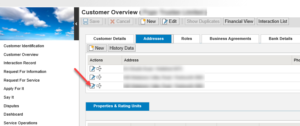
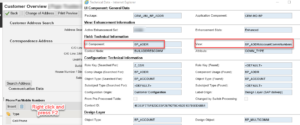
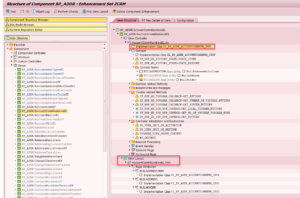
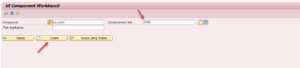 Find the UI component and View associated with it
It shows the different view components as seen below
In order for us to change the section for communication then, we need to focus on the controller implementation class Implementation Class ZL_BP_ADDR_ACCOUNTCOMMNUM_IMPL
And View layout AccountCommNumbersEL.htm
Find the UI component and View associated with it
It shows the different view components as seen below
In order for us to change the section for communication then, we need to focus on the controller implementation class Implementation Class ZL_BP_ADDR_ACCOUNTCOMMNUM_IMPL
And View layout AccountCommNumbersEL.htm
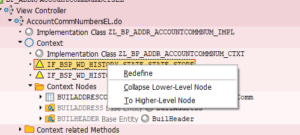 This is one of the important classes which has a method DO_PREPARE_OUTPUT where you can control to make the view editable or display only
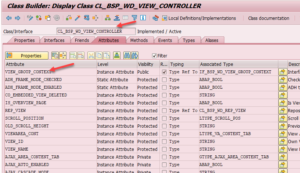
Class time in a bol entity for implementation is of the type CL_BSP_WD_VIEW_CONTROLLER
In this class, you get attributes by default which you can use to control the context behavior
For this case, we would be using VIEW_GROUP_CONTEXT
This is one of the important classes which has a method DO_PREPARE_OUTPUT where you can control to make the view editable or display only
Class time in a bol entity for implementation is of the type CL_BSP_WD_VIEW_CONTROLLER
In this class, you get attributes by default which you can use to control the context behavior
For this case, we would be using VIEW_GROUP_CONTEXT
 This further reference an associated interface IF_BSP_WD_VIEW_GROUP_CONTEXT
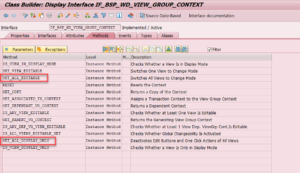
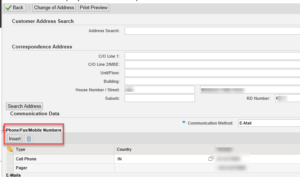 Let’s add an additional line of code that says
me->zaddress_display = ‘ ‘.
Let’s add an additional line of code that says
me->zaddress_display = ‘ ‘.
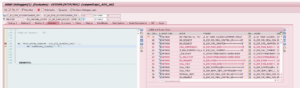 Now when the program runs, it is able to show the field as display only.
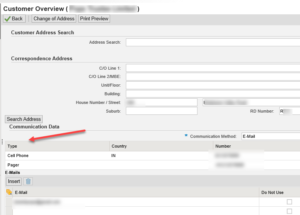 The additional setting is to create an attribute in the class
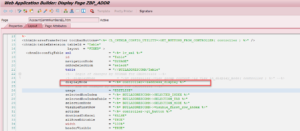
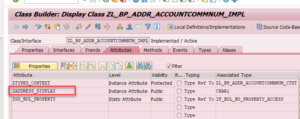 This attribute value is passed on the BSP page below
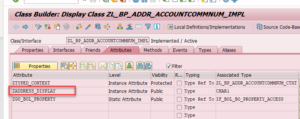 Then the code should say:
display mode = “<%= controller->zaddress_display %>”
Then the code should say:
display mode = “<%= controller->zaddress_display %>”
 To make all fields editable below then, you should use
me->view_group_context->set_all_editable( ).
me->zaddress_display = ‘ ‘.
After that, the HTML page, the value of Zddress, would now be passed as Blank, making the field editable.
To read more:
To make all fields editable below then, you should use
me->view_group_context->set_all_editable( ).
me->zaddress_display = ‘ ‘.
After that, the HTML page, the value of Zddress, would now be passed as Blank, making the field editable.
To read more: